After setting up your tracks and voices, input notes and lyrics in the Piano Roll area.
¶ Basic Note Input
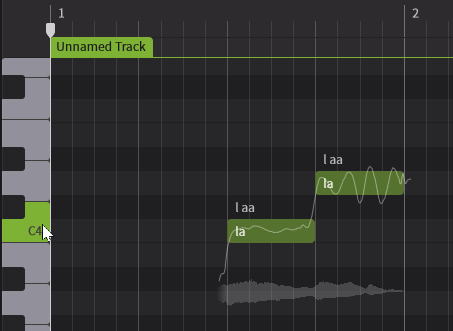
The vertical axis of the Piano Roll represents pitch, while the horizontal axis represents time.
¶ Notes and Note Groups
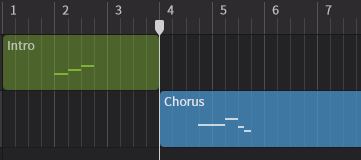
The area where you input notes and modify parameters is called a Note Group.
Note groups can be placed on tracks, moved, and copied.
If there is no note group, a new one will be automatically created when you create a note on the Piano Roll.
¶ Note Input
You can input notes in the following ways:
¶ Use the Note Creation Mode
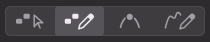
The Note Creation Mode allows for intuitive note input by dragging with the mouse.
¶ Use the Note Editing Mode
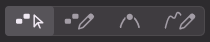
The Note Editing Mode makes it easy to select and move notes.
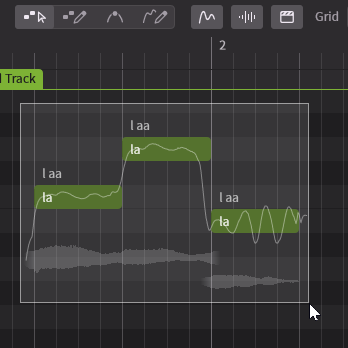
With this tool, you can double-click at the desired note input location and then drag to create a note of any length.
¶ Use a MIDI Device
By connecting a MIDI device and selecting it in Settings, you can input notes using the device.
- Press the keys on your MIDI device to confirm that the piano roll keyboard responds. Use the octave buttons on your MIDI device to adjust the pitch.
- Press the Recording button in the Transport Area to start recording. Your performance on the MIDI device will be recorded as notes.
- Press the stop button to stop recording.
- Use the Quantize Recorded Notes dialog to correct the timing and duration of the recorded notes.
¶ Importing Score Files
You can import MIDI files or MusicXML files created in a DAW or other software.
¶ Convert Vocals to Notes
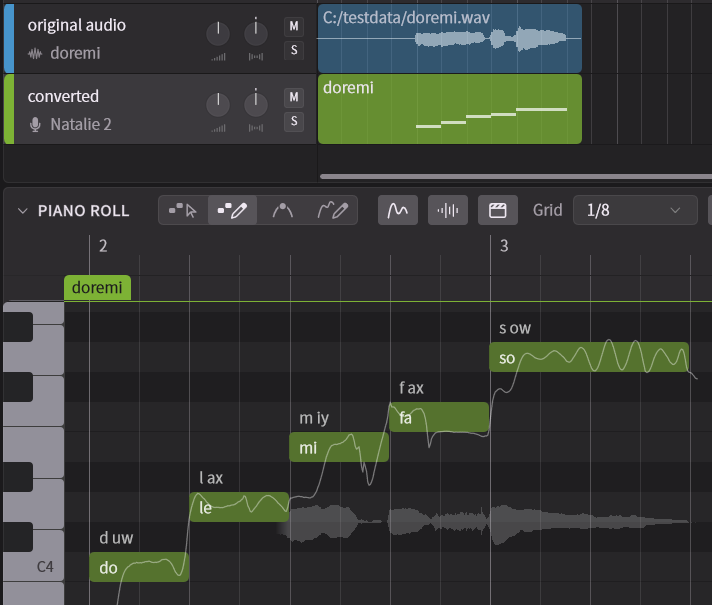
Using the Voice-to-MIDI Conversion feature, you can convert solo vocal audio data into musical notes with lyrics.
¶ Note Editing
- Select a note by clicking on it.
- Move a note by dragging it.
- Change the length of a note by dragging its edge.
- Delete a note by selecting it and pressing Delete.
For more detailed information on Piano Roll operations, please refer to "Piano Roll".
¶ Lyrics Editing
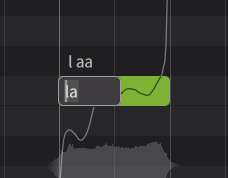
- Double-click a note to edit the lyrics.
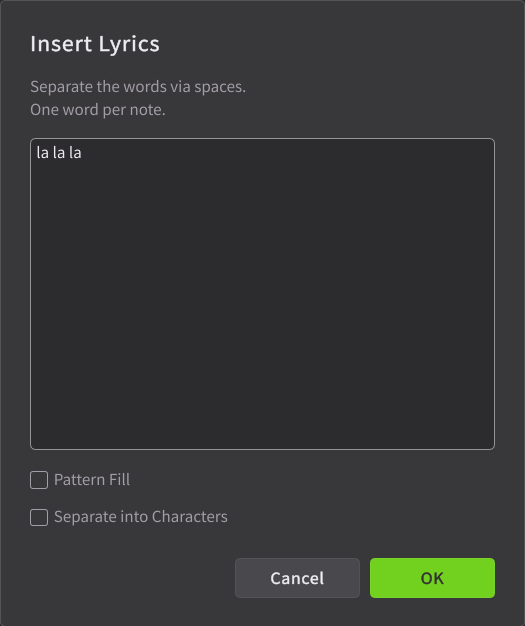
- To input lyrics for all selected notes at once, right-click on them and select [Insert Lyrics...].
¶ Lyrics Special Symbols
The following special symbols can be used when inputting lyrics:
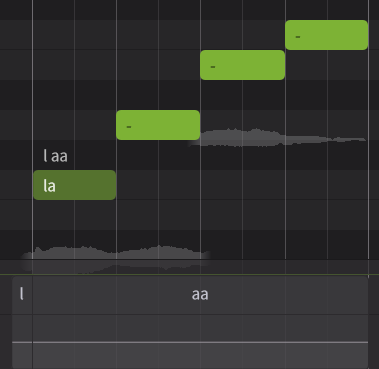
- [ - ] : Continues the previous pronunciation.
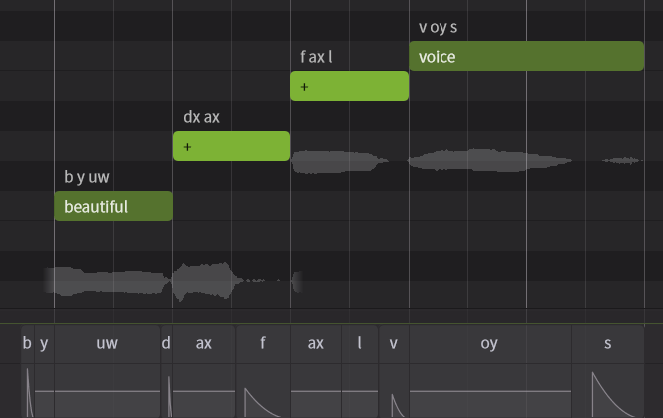
- [ + ] : Splits the syllables of the previous word. For example, "beautiful" has three syllables ("beau", "ti", "ful"). Inputting "beautiful" "+" "+" will assign the three syllables on three different consecutive notes.
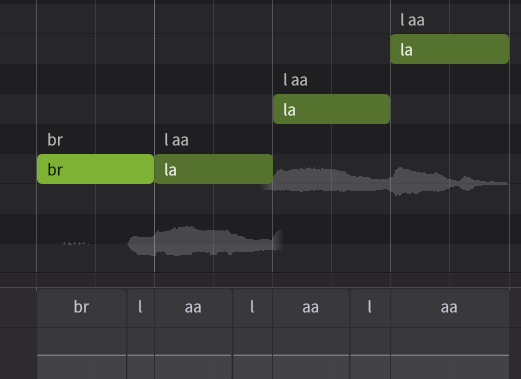
- [ br ] : Reproduces a breath sound (inhaling).
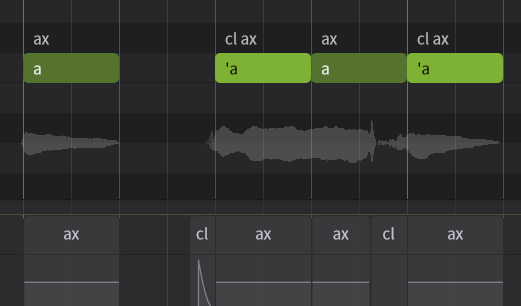
- [ ' (cl) ] : Inserting a single quote ( ' ) before a lyric inserts a glottal stop. This is especially effective when you want to clearly separate vowels from the preceding pronunciation.
¶ Phoneme Editing
Phonemes, which are the units of pronunciation that form a word, are displayed at the top of each note.
You can edit phonemes by double-clicking on them.
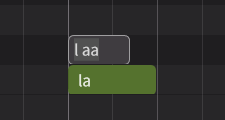
The phonemes available for use in the editor vary depending on the singing language.
You can check the phonemes available for each language in the Phoneme Reference List.
For more detailed information on editing phonemes, please refer to "Pronunciation Editing".
¶ Things to Keep in Mind When Entering Notes
¶ Creating Notes Within a Note Group
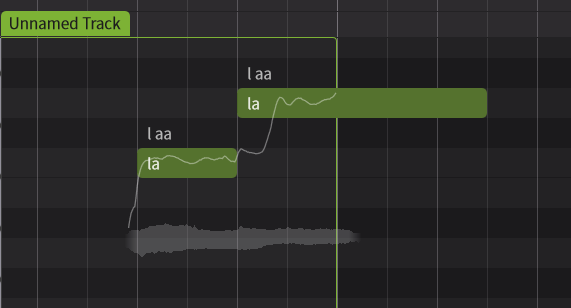
Notes outside of a Note Group will be hidden and their audio will not be rendered.
You can edit these notes by extending the length of the note group until it covers them.
¶ Don't Leave Gaps Between Notes
Because Synthesizer V Studio 2 Pro renders considering the connection between preceding and following notes, if preceding and following notes are not perfectly adjacent, unnatural audio will be generated.
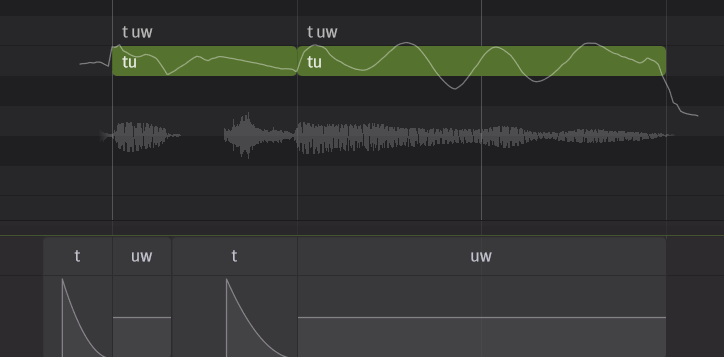
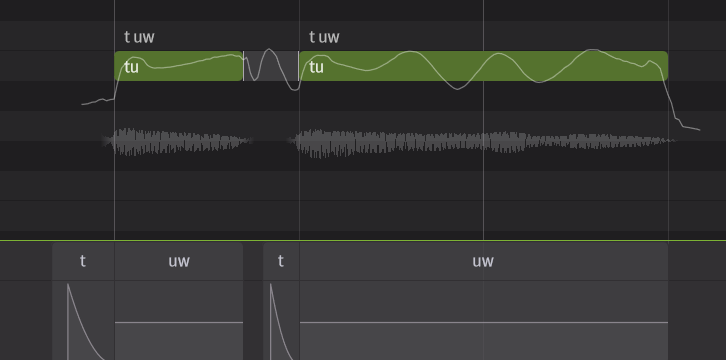
Note gaps will be highlighted. Click on them to fill the gaps.
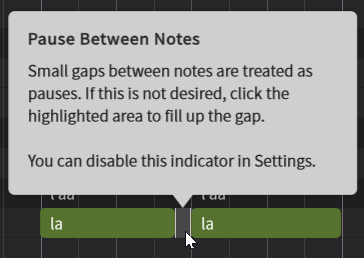
You can also use the menu bar's Modify options [Snap to Grid] or [Smart Quantization...] menus to quantize selected notes in bulk.
To adjust the pronunciation length, use the Phoneme Timing Panel instead of the note length.
¶ Ensure Sufficient Space Between Phrases
Since consonants or breath tails sounds are generated before and after notes, there needs to be sufficient space between phrases for these sounds to be generated.
¶ Avoid Stacking Notes Vertically
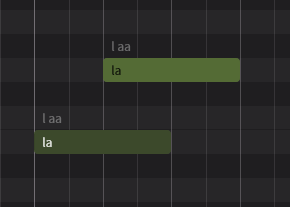
In Synthesizer V Studio 2 Pro, rendering takes into account the connection between adjacent notes, so you cannot generate multiple melodies simultaneously on a single track.
If notes are stacked vertically, the audio will not be rendered. Please delete overlapping notes or adjust their lengths.
¶ Confirm Note Language
Synthesizer V Studio 2 Pro comes equipped with cross-lingual synthesis functionality.
Regardless of the language in which the voice was recorded, it can sing in all languages supported by the editor.
(Note: Version 1 compatible voices only support a limited number of languages)
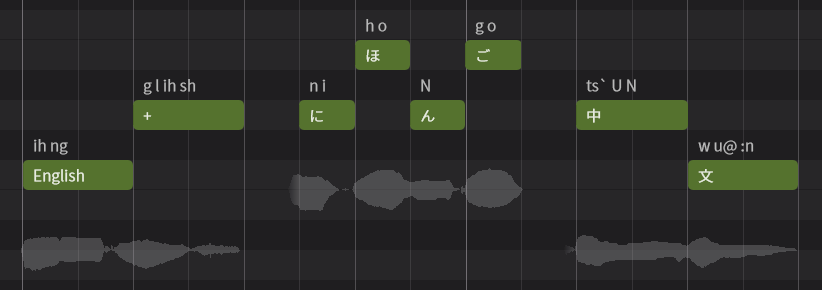
If the language of the lyrics and the language set for the note do not match, the pronunciation will be incorrect or accented.
The singing language for the entire note group can be set in the Voice Panel.
The singing language for individual notes can be set in the Notes Panel.
¶ Use the "+" Symbol for Long Words
When entering lyrics in a language (such as English) where a single note contains multiple syllables, enter the "+" symbol into the next note to split the syllables.