Various settings related to the editor are configured in Settings.
Settings in Synthesizer V Studio 2 Pro are automatically saved when you exit the program. Deleting the settings file will reset all settings to their default values, and a new settings file will be created the next time you launch the editor.
Settings files are saved in the following location:Windows:
C:\Users\<username>\AppData\Roaming\Dreamtonics\Synthesizer V Studio 2\settings\settings.xml
macOS:/Users/<username>/Library/Application Support/Dreamtonics/Synthesizer V Studio 2/settings/settings.xml
¶ How to Open the Settings Panel
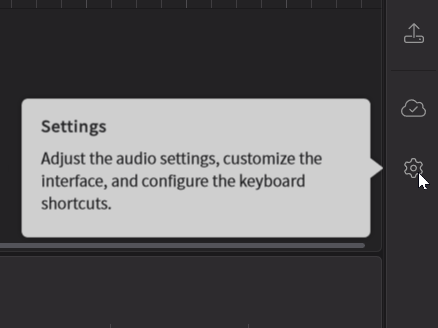
Click the icon at the bottom of the sidebar to open the Settings.
¶ General
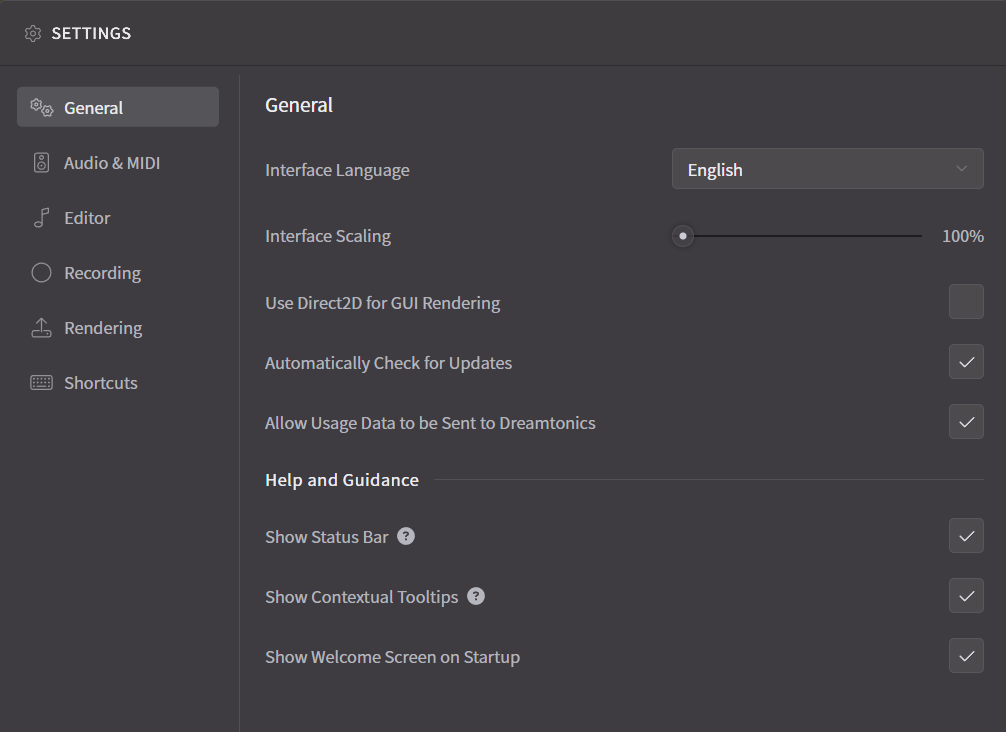
- Interface Language: Sets the language displayed in the editor. Translations for untranslated languages are welcome here.
- Interface Scaling: Sets the zoom level for the editor display. You can set values between 100% and 200%, with a default value of 100%.
- Use Direct2D for GUI Rendering (Windows Only): Check this box to enable smoother rendering of the editor window. However, on some hardware, performance may be unstable.
- Automatically Check for Updates: Shows a dialog box when updates are available at startup.
- Allow Usage Data to be Sent to Dreamtonics: Sends usage data to Dreamtonics to improve the software. No personal identifiable information is collected.
¶ Help and Guidance
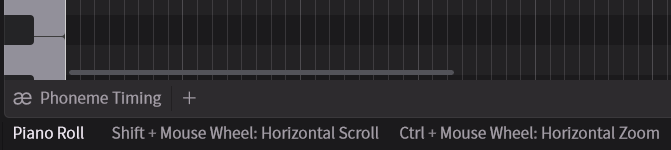
- Show Status Bar: Show a status bar at the bottom of the screen that displays usage tips and information.
- Show Tooltips on Mouse Hover: Displays explanations as pop-ups when you mouse over tools or side panels.
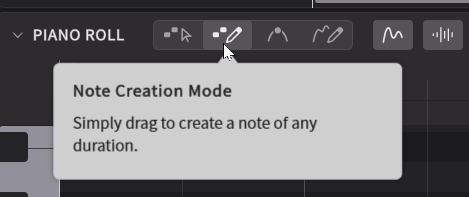
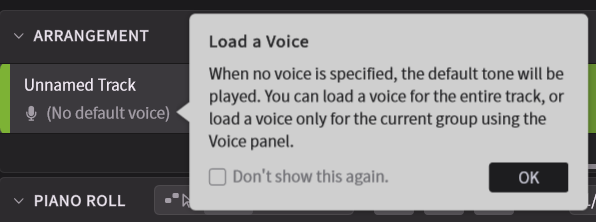
- Show Contextual Tooltips: Get usage tips when the program detects a situation where a tooltip may be helpful.
- Show Welcome Screen on Startup: Displays the welcome screen when the editor starts up. You can download sample projects or consult tutorials from here.
¶ Audio and MIDI
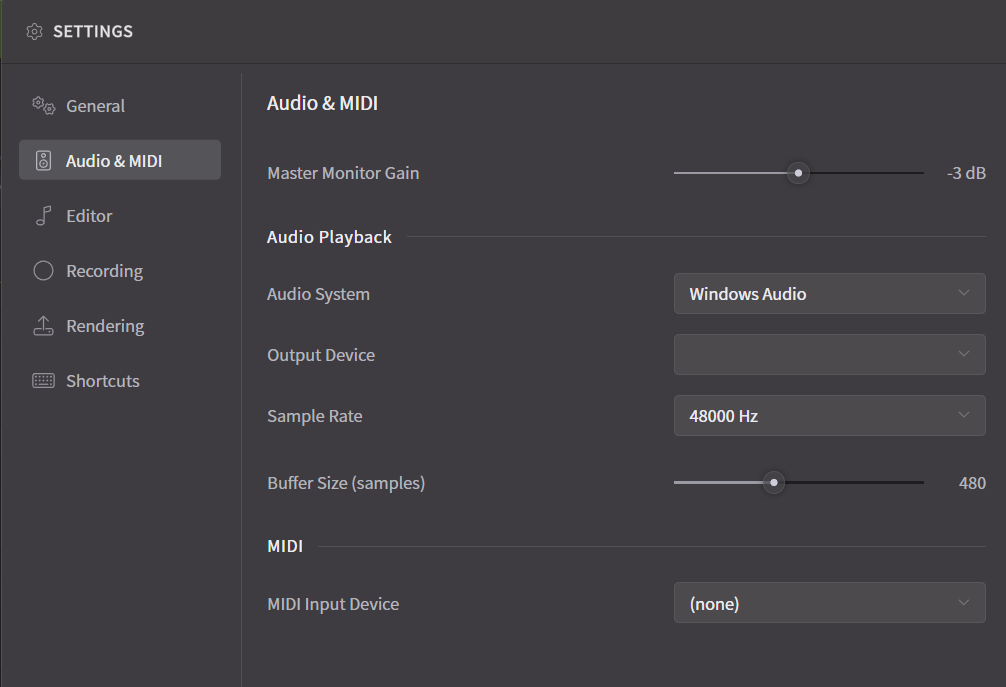
- Master Monitor Gain: Sets the monitor volume. Values can range from -12 to 6 dB, with a default of -3 dB.
- Plugin Channel Layout (Plugin Version): Sets the audio channel to output to your DAW. For more details, see "Instrument Plugin Setup".
¶ Audio Playback (Standalone Version)
- Audio System: Sets the audio system to use.
- Output Device: Selects the audio output device to use. Available output devices may vary depending on your audio system settings.
- Sample Rate: Sets the sample rate. Available sample rates may vary depending on your output device settings.
- Buffer Size (samples): Sets the buffer size in samples.
¶ MIDI
- MIDI Input Device: Sets the MIDI input device to use. In the plugin version, [Disabled] is selected by default to avoid conflicts with the DAW.
¶ Editor
¶ Transport
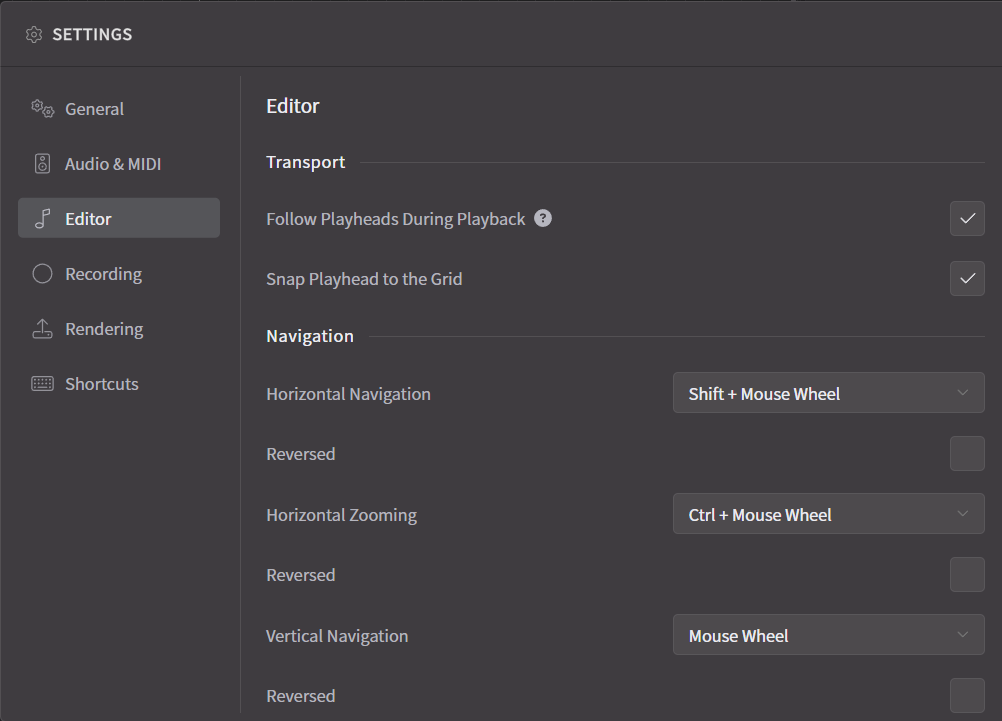
- Follow Playheads During Playback: Automatically scroll to the next page when the playhead reaches the end of the current view.
- Snap Playhead to the Grid: When clicking in the Arrangement area or Piano Roll area to move the playback bar, it snaps to the grid.
¶ Navigation
- Horizontal Navigation: Sets the method for horizontal scrolling. The default is "Shift + Mouse Wheel".
- Horizontal Zooming: Sets the method for horizontal zooming. The default is "Ctrl/Command + Mouse Wheel".
- Vertical Navigation: Sets the method for vertical scrolling. The default is "Mouse Wheel".
- Reversed: Reverses the direction for each of "Horizontal Navigation", "Horizontal Zooming" and "Vertical Navigation".
- 2D Mouse Wheel for Scrolling: Use a 2D mouse wheel or a trackpad to simultaneously scroll in both directions.
¶ Notes
- Prevent Note Overlap During Resizing: Automatically resize the other note when you drag a note towards its neighbor, to prevent notes from overlapping.
- Prevent Note Overlap During Dragging/Note Creation: Automatically resize the other note when you place a note on top of another note, or drag a note towards its neighbor, to prevent notes from overlapping.
- Default Pasting Behaviour: Sets the position where notes and control points are pasted.
-
¶ Pasting Position Options (Click to Expand/Collapse)
There are two options for pasting position:
- Paste at playhead: Pastes the content so that it starts at the current playhead position.
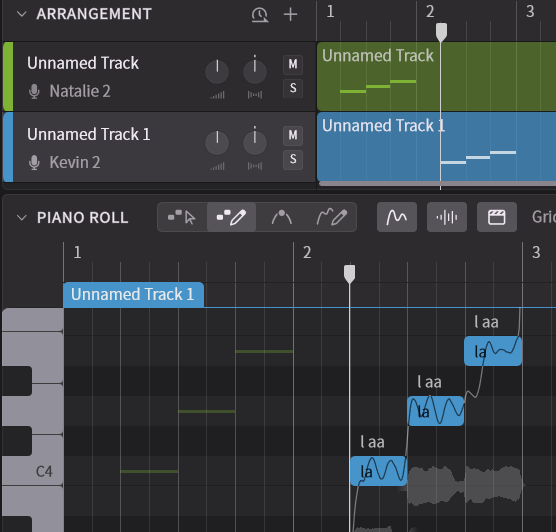
- Paste at the same screen position: Pastes the content based on its position relative to the left edge of the Piano Roll window. This allows you to determine the paste position by horizontally scrolling the screen, regardless of the playhead position. It's also useful when pasting to a different track.
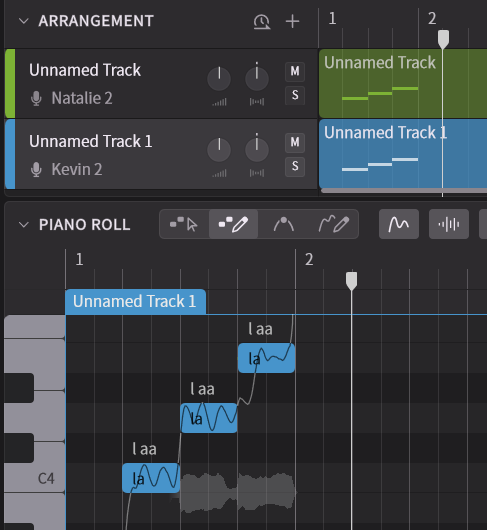
- Paste at playhead: Pastes the content so that it starts at the current playhead position.
- Default Lyrics: Sets the default lyrics that will be applied when creating new notes.
- Note Default Pitch Mode: Sets the default pitch mode (singing or rapping) that will be applied when creating new notes.
- Play Tone When Moving a Note: Plays a tone when creating notes or moving pitches so that you can hear the pitch changes.
- Show Silence Indicators: Highlight the small gaps between notes to make them easier to spot.
- Split Lyrics by Spaces: When a space is entered into the lyrics editor, finalize the editing of the current note and open the lyrics editor for the next note.
¶ Groups
- Default Group Pasting Behaviour: When pasting Note Groups, sets whether to create linked groups or separate groups.
- Prevent Group Overlap During Resizing: Automatically resize the neighboring group when you extend the head or tail of a group, to prevent groups from overlapping.
- Prevent Group Overlap During Dragging: Automatically resize the other group when you drag a group towards its neighbor, to prevent groups from overlapping.
- Automatic Language Detection: Detect and set the language for a group based on the lyrics, when a voice is loaded.
¶ Parameters
- Parameter Erasing Behavior: Set the behavior when erasing the parameters in Freehand Mode.
- Set to zero: Deletes the dragged range and sets both ends to zero (default value).
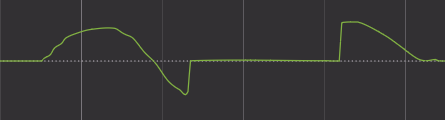
- Remove the points: Deletes the dragged range and aligns both ends with surrounding parameter values.
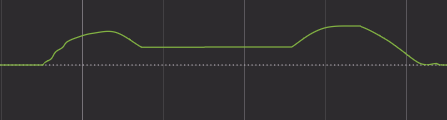
- Set to zero: Deletes the dragged range and sets both ends to zero (default value).
- Auto Insert Anchor Points: When adding a control point, automatically adds control points to the left and right edges of the note, ensuring that other notes are not affected.
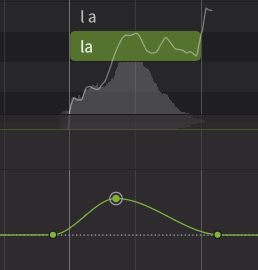
- Hide Points in Freehand Mode: Hides control points and displays only curves while using the pen tool.
- Simplify Freehand-Drawn Curves: After drawing a curve using the Freehand Mode, automatically thins out the parameters and reduces the number of control points.
- Snap Points to Zero: When moving control points vertically, snaps them near the value 0.
¶ Automation
- Automatic Language Detection: Detect and set the language for a group based on the lyrics, when a voice is loaded.
- Automatically Detect Tempo After Importing Audio: When importing audio, the tempo is automatically detected and displayed as BPM and beat grids. Even with this setting off, you can detect the tempo by right-clicking the audio and selecting [Detect Tempo].
¶ Decorations
- Show Character Image: Display an image for the voice (if available) on the background of the Piano Roll for demonstration purposes.
- Image Transparency: Sets the transparency of the character image from 0 to 100%. The default value is 50%.
¶ Recording
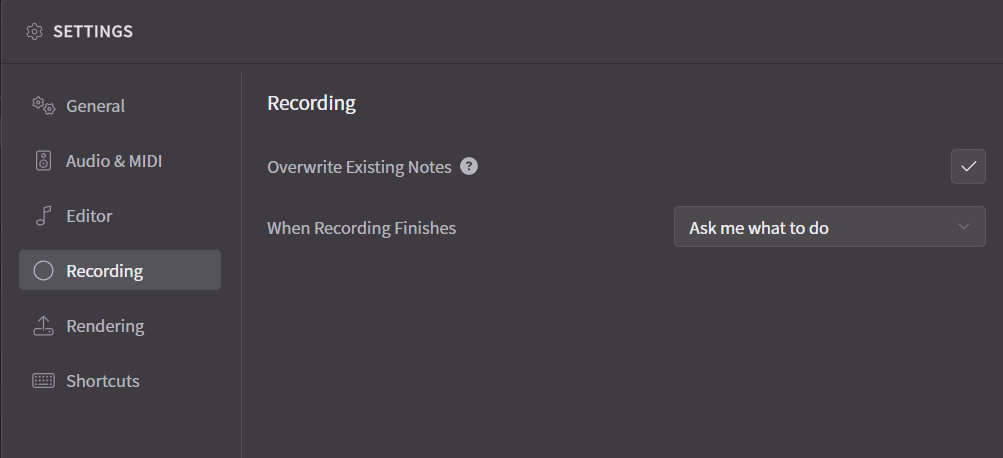
- Overwrite Existing Notes: During recording, adjusts existing notes by deleting or shortening them to avoid overlap. Unchecking this option will leave the notes overlapping.
- When Recording Finishes: Sets the quantization of notes after finishing real-time input.
¶ Rendering
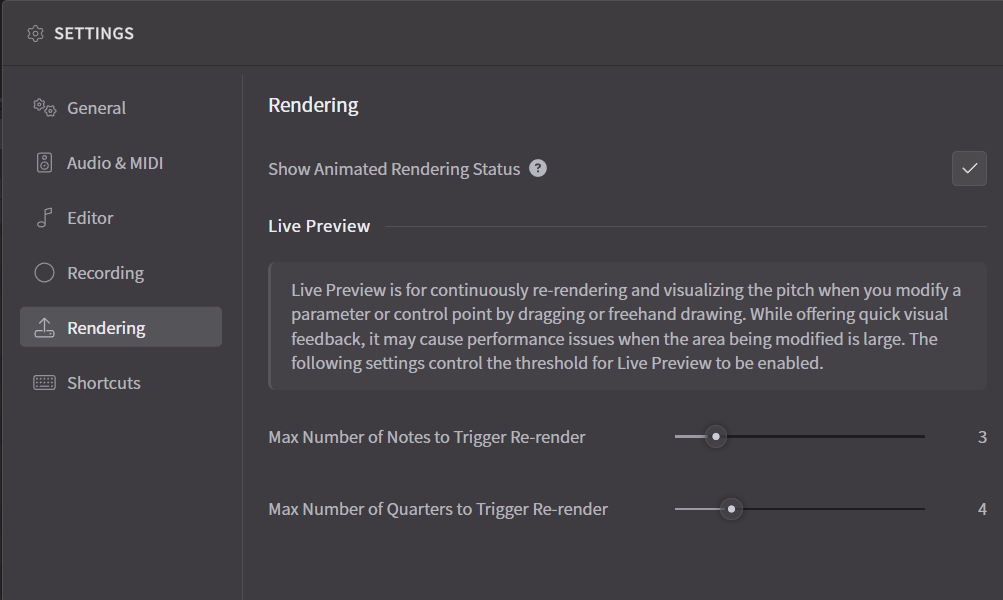
- Show Animated Rendering Status: Displays the current rendering status using highlights on the note group and a white line on the timeline.
¶ Rendering Cache
Render Cache stores synthesized phoneme, pitch and audio data on the disk to speed up re-opening projects and reduce memory usage. The cache for all projects are stored in a central location and can grow over time.
For more details, see "Rendering and Export".
¶ Live Preview
Live Preview is for continuously re-rendering and visualizing the pitch when you modify a parameter or control point by dragging or freehand drawing.
While offering quick visual feedback, it may cause performance issues when the area being modified is large.
Re-rendering occurs when the edited range exceeds one of the following thresholds:
- Max Number of Notes to Trigger Re-render
- MaX Number of Quarters to Trigger Re-render
¶ Shortcuts
You can edit shortcut key assignments for each menu item, actions and scripts in the menu bar.
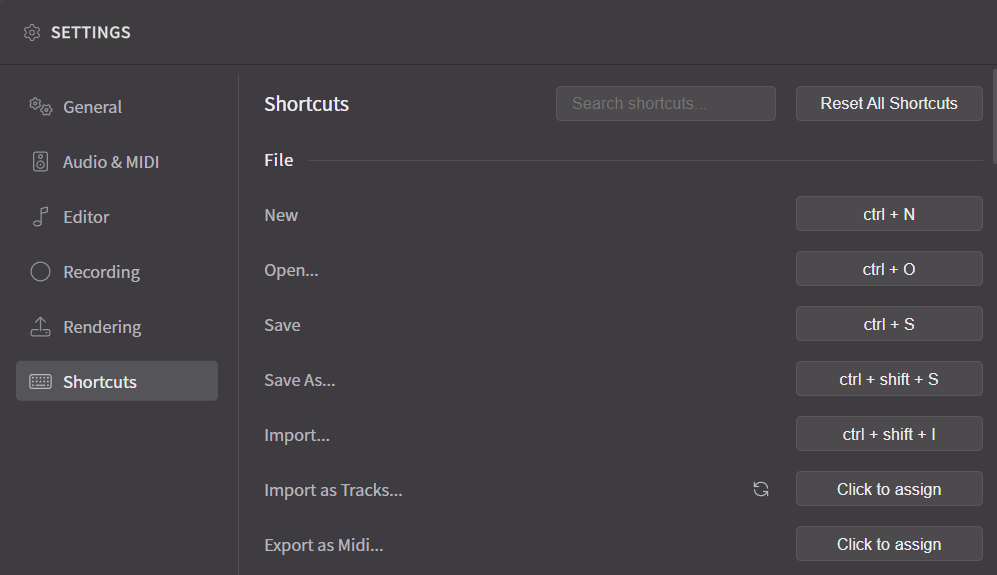
- Click on [Click to assign (or Already Assigned Key)] and press the new key you want to assign.
- Use [Search shortcuts...] to search for menu names and narrow down the results.
- Click [Reset All Shortcuts] to revert all shortcut key settings to their defaults.
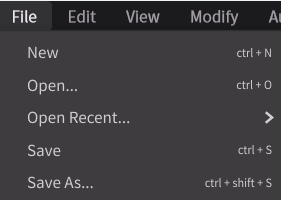
Registered shortcuts are displayed within the menus.