¶ Introducing Note Groups
The area for inputting notes and control points/curves is called a note group.
In Synthesizer V Studio 2 Pro, almost all data, including notes, control points, and various parameters, belongs to a note group.
Note groups are placed on tracks and can be moved or split.
¶ Note Groups and Voices
In Synthesizer V Studio 2 Pro, you can set a voice for both the track and each individual note group.
If a note group does not have a voice assigned to it, it will use the voice assigned on the track.
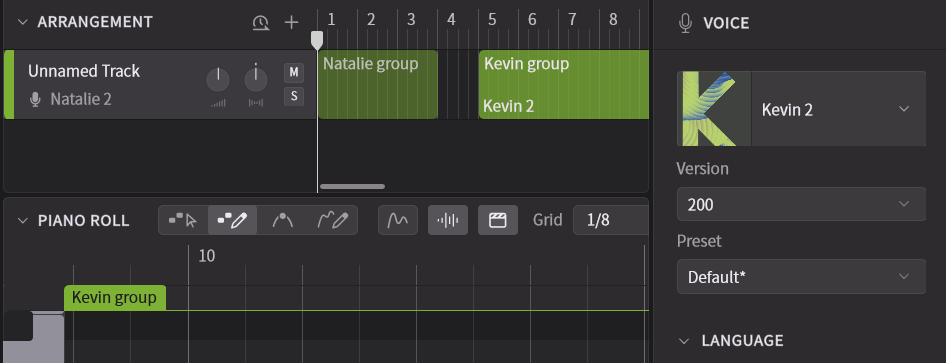
- To set the voice for a track, select the desired voice in the header section of the Arrangement.
To set the voice for a note group, select the desired voice in the Voice Panel.
Selecting the same voice as the track will deactivate the individual voice setting for the note group.
¶ Linked Groups
When you duplicate note groups, they become part of a linked group.
Within a linked group, edits to notes and control points/curves are shared.
When selecting a note group in the Arrangement Area, a mark will appear if there are any linked groups associated with that group.
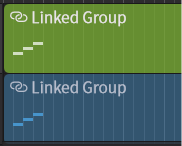
The link between note groups can be unlinked. Additionally, when duplicating a note group or track, you can duplicate without linking the group.
¶ Data Shared Between Link Groups
- Notes and information set for each note (lyrics, phonemes, AI retakes, etc.)
- Control points/curves edited in the parameter panel
- Smart Pitch Controls
- Note group names
¶ Data Not Shared Between Link Groups
- Items settable in the Voice Panel (voice, vocal modes, basic parameters such as loudness and tension)
- Note group length
¶ Handle Notes Outside of Note Group Bounds
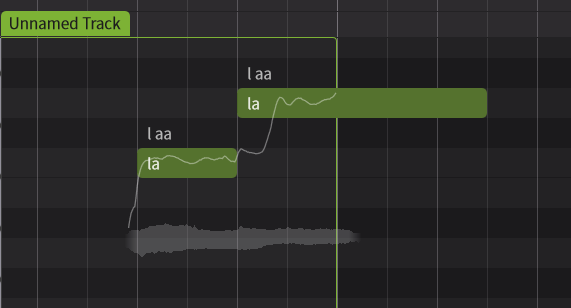
Notes outside a note group will be hidden and will not produce sound when rendered.
You can access these notes by extending the length of the note group assigned to them.
¶ Create Note Groups
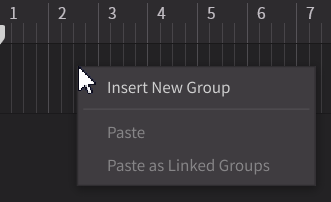
- Double-click in the track area where you want to create a note group.
- Right-click in the track area where you want to create a note group and select Insert New Group.
- When there are no note groups in a track, creating a note in the Piano Roll will automatically create a note group.
¶ Select and Focus Note Groups
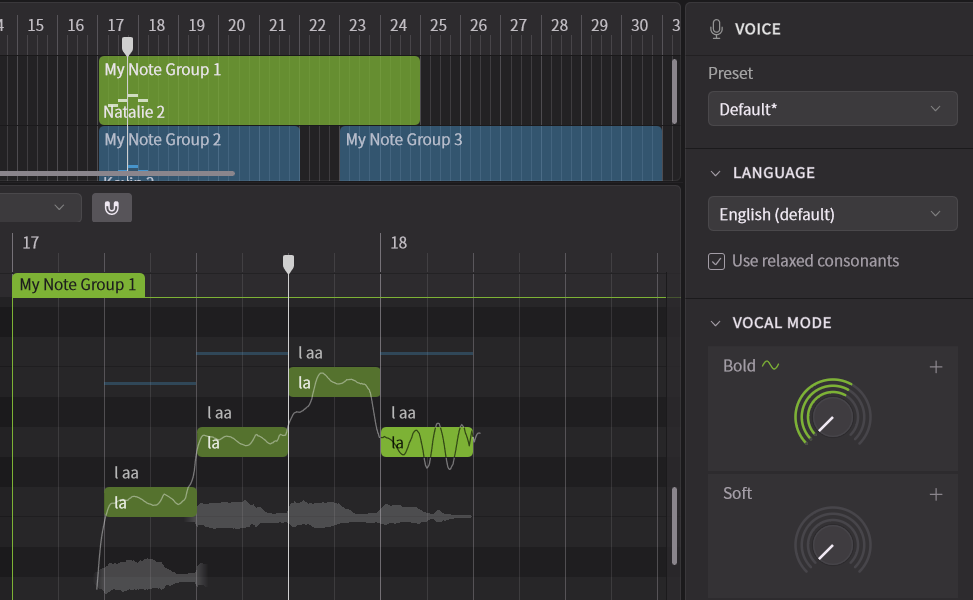
In the Arrangement Area, you can select multiple note groups.
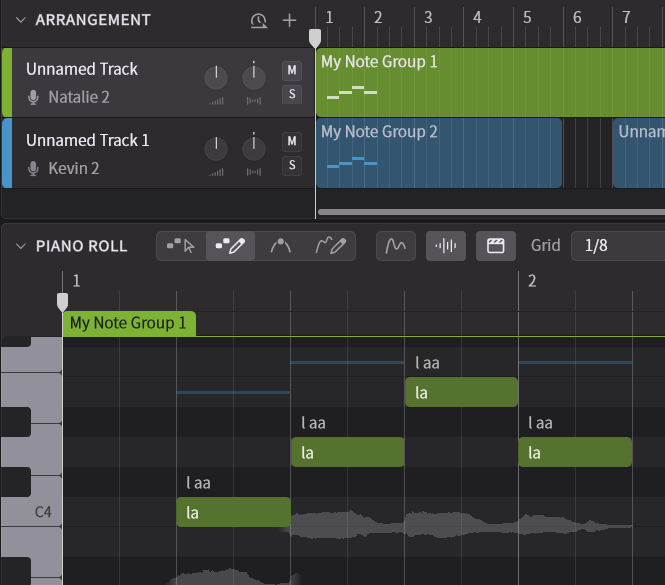
The last selected note group will be highlighted in the Piano Roll and will be in a focused state.
In the Piano Roll, one note group is always in focus, and the focus cannot be released as long as there are note groups on the track.

(The image shows "My Note Group 1" and "My Note Group 2" selected, with "My Note Group 2" in focus.)
¶ Selecting Note Groups in the Arrangement Area
- Select a note group by clicking on it.
- While a note group is selected, you can add or deselect another group using Ctrl / Command + click.
- While a note group is selected, you can select all groups in between by Shift + click on another group.
- Select all note groups using Ctrl +A/Command +A.
- When multiple note groups are selected, you can deselect them with Esc. However, note groups that are focused in the Piano Roll will remain selected in the Arrangement Area.
In the Piano Roll area, you can perform the following operations:
- Select a note group by clicking its label.
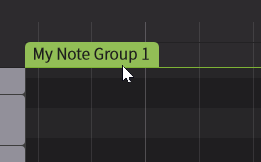
- Select a group by clicking on any note within the group.
¶ Edit Note Groups
Focused note group can be edited in the Piano Roll, including notes and lyrics.
Additionally, in the Voice Panel, you can edit the group's singing language, Vocal Modes, Basic Parameters, and more.
In the Voice Panel, you can edit all currently selected note groups at once.
¶ Move Note Groups
- Move note groups in the Arrangement area by dragging them.
- Hold down Ctrl + Alt/Command + Option while dragging to move the note group without snapping to the grid.
¶ Change Note Group Length
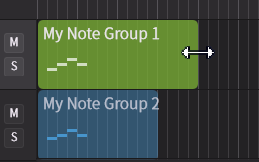
In the Arrangement area or Piano Roll area, change the length of a note group by dragging its edge.
¶ Split a Note Group
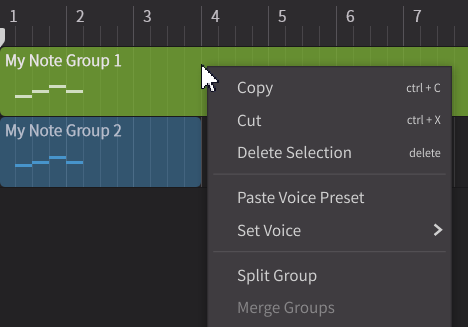
- Right-click on a note group in the Arrangement area and select Split Group. The note group will be split at the location where you right-clicked.
- Right-click on a note in the Piano Roll area and select Split The Parent Group. The note group will be split at the beginning of the selected note.
¶ Merge Note Groups
In the Arrangement area, select multiple note groups, right-click and select Merge Groups.
The Merge Groups option will not be available if there are any unselected note groups between the selected ones.
¶ Copy Note Groups
In the Arrangement area, you can perform the following operations:
- Hold down Alt/Option while dragging a note group. The copied note group will be linked to the original group.
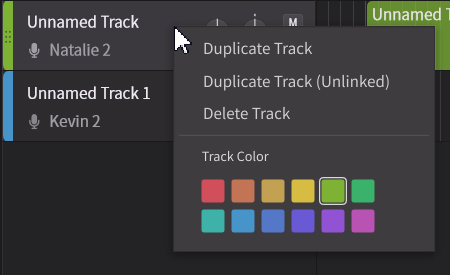
- When you duplicate a track, all the note groups on that track are duplicated and become link groups.
- Right-click on the track and select [Duplicate Track (Unlinked)], and the track will be duplicated with the note groups copied as separate, unlinked groups.
¶ Copy and Paste Note Groups
In the Arrangement area, you can perform the following operations:
- Right-click on a note group and select Copy (or press Ctrl + C/Command + C) to copy the selected note group to the clipboard.
- Right-click on a note group and select Cut (or press Ctrl + X/Command + X) to cut the selected note group (copying it to the clipboard and deleting it).
- Right-click on a note group and select Paste (or press Ctrl + V/Command + V) to paste the copied note group from the clipboard.
- Right-click at the location where you want to paste and select [Paste as Linked Groups], and it will always be pasted as a linked group.
- The Copy, Cut, and Paste menus are also available from the menu bar under Edit > Clipboard.
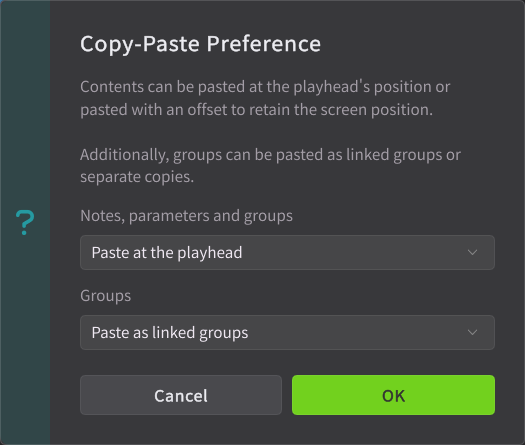
The first time you paste, you can choose to "Paste at the playhead" or "at the same screen position."
You can also choose whether to default to a link group when pasting.
For more details, please see "Settings".
¶ Pasting Parameters
Settings available in the Voice Panel such as Vocal Modes, Basic Parameters, and Tuning can be pasted onto other note groups.
- In the Arrangement Area, select a single note group, right-click and choose [Copy] (or use Ctrl+C / Command+C) to copy it.
- Right-click the note group you want to paste onto and select [Paste Voice Preset].
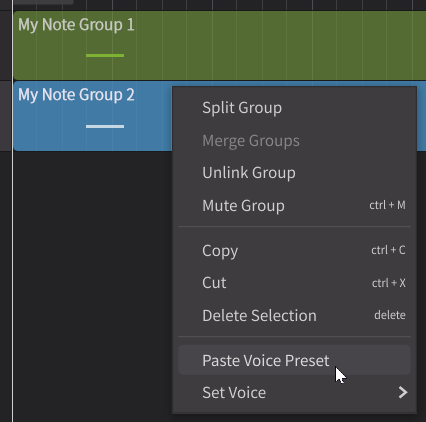
The lineup of Vocal Modes varies depending on the voice.
If the voice of the target note group differs from the source, only Vocal Modes with the same name will be applied.
¶ Unlink Groups
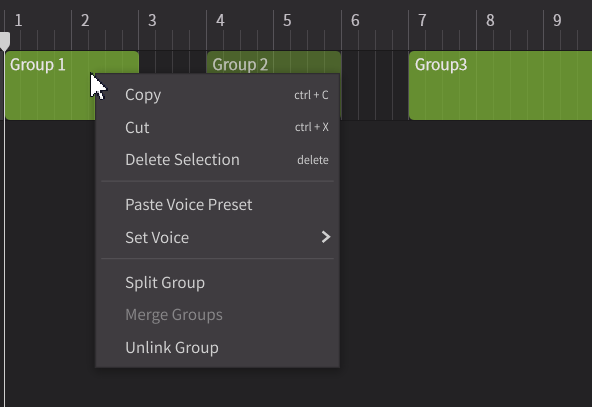
Right-click on a note group in the Arrangement area and select Unlink Group.
When there are three or more linked groups, only the selected note group will be unlinked.
¶ Delete Note Groups
Deleting a note group will also delete any notes and control points contained within it.
- Right-click on a note group in the Arrangement area and select Delete Selection.
- Select a note group in the Arrangement area and press Delete, or click Edit > Selection > Delete Selection in the menu bar.
¶ Rename Note Groups
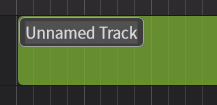
Double-click the note group name in the Arrangement area to edit it.
¶ Mute Note Group
When a note group is muted, it will be grayed out and will not be played during playback.
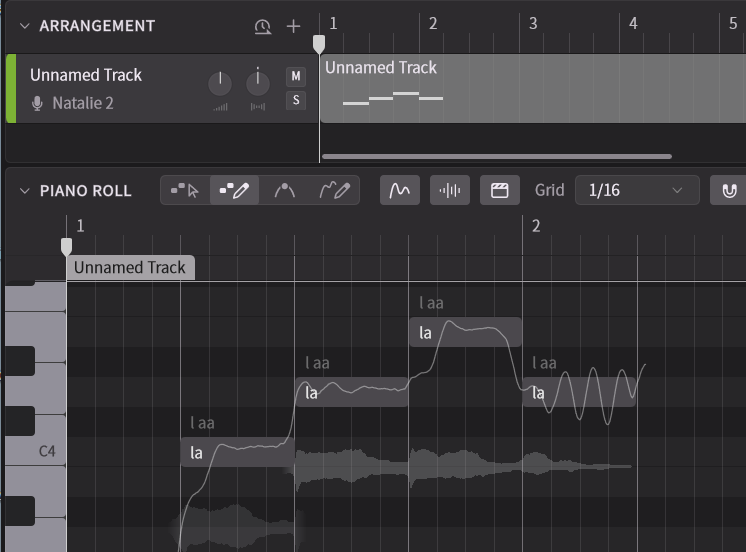
- Right-click on a note group that is not muted, and select [Mute Group] (or press Ctrl+M / Command+M) to mute it.
- Right-click on a muted note group, and select [Unmute Group] (or press Ctrl+M / Command+M) to unmute it.