The Notes Panel allows you to make settings for selected notes and perform AI retakes.
When multiple notes are selected, settings will affect them all together.
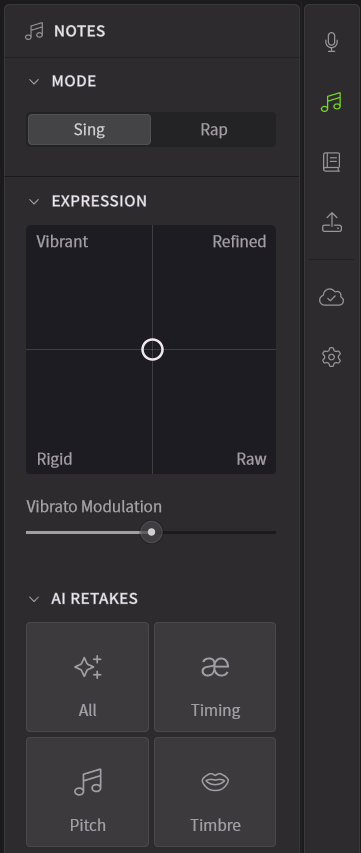
Notes Panel parameters can only be edited when a note is selected.
¶ How to Open the Notes Panel
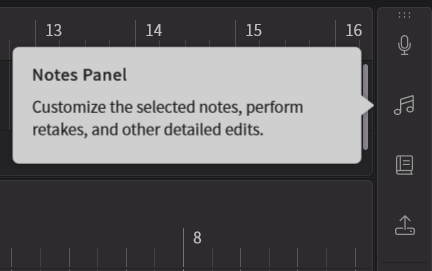
Click the second icon from the top in the sidebar (or press Ctrl+B/Command+B) to open the Notes Panel.
¶ Pitch Mode
You can select Singing Mode or Rap Mode.
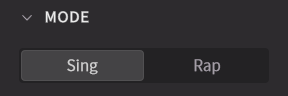
Notes in Singing Mode are displayed as squares, while notes in Rap Mode are displayed with rounded corners.
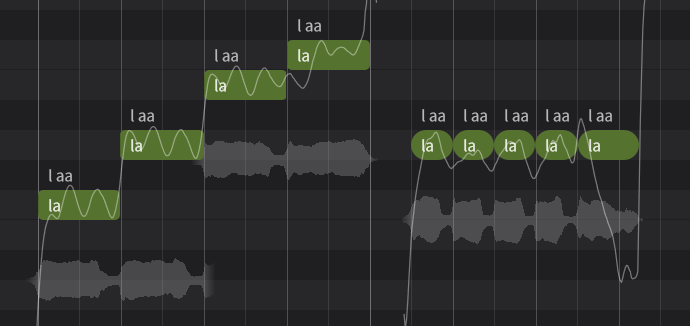
For the basics of pitch editing, please refer to "Pitch".
¶ Choir Spread
Displayed only when using a Choir voice.
Adjusts the timing and pitch variations for each singer when multiple singers are performing simultaneously using the Unison function.
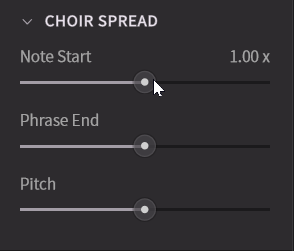
- [Note Start] and [Pitch] can be adjusted for all notes.
- [Phrase End] can only be adjusted for the last note of a phrase (when it is not adjacent to the next note).
¶ Expression Pad
Expression Pad allows you to specify the performance direction of the generated pitch curve.
There are four quadrants available for expression control. You can set each quadrant by moving the cursor.
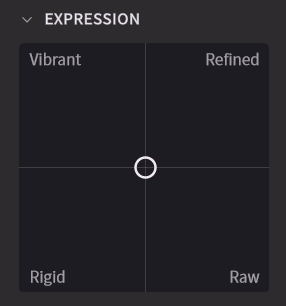
- Default (Center):
Generates a standard pitch curve for that voice. - Vibrant (Top Left):
Generates a more expressive singing style than the default. It tends to produce more exaggerated expressions, such as deeper vibrato. - Refined (Top Right):
Generates a singing style that aligns more closely with mainstream preferences. It delivers stable and skillful vocals but is less suitable for producing varied or dynamic patterns. - Raw (Bottom Right):
Generates a highly dynamic singing style. Since internal processing like pitch correction is reduced, it can produce more human-like patterns, but it also increases the possibility of off-pitch results. - Rigid (Bottom Left):
Generates a flat singing style. The pitch curve remains steady, with only slight fluctuations near note boundaries. Additionally, the pitch curve is unaffected by AI Retake.
¶ Vibrato Modulation
When a selected note is in Singing Mode, Vibrato Modulation will be displayed.
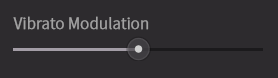
- Set the value by dragging the slider. It can be set between 0.00 and 2.00, with a default value of 1.00.
- When you hover the mouse over the slider, the numerical value will be displayed. Double-click the numerical value to edit it.
¶ Rap Intonation
When a selected note is in Rap Mode, the following parameters will be displayed:
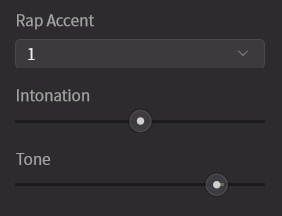
- Rap Accent: Only visible when using Chinese Mandarin. Adjusts the tone (accent) in Chinese. Because the meaning of words in Chinese can change depending on the tone, you can choose from four types of tones and a light tone.
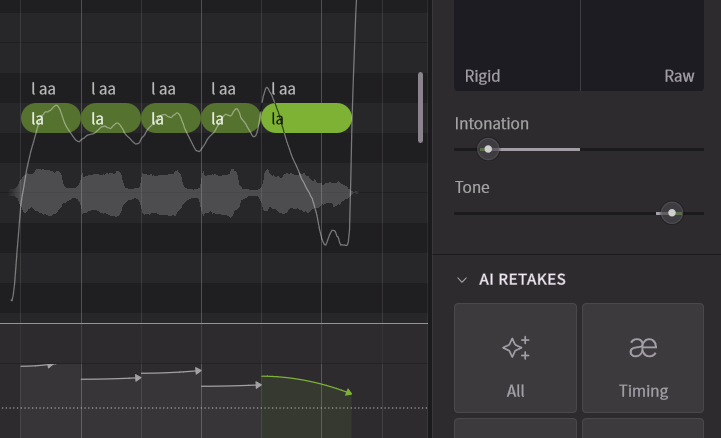
- Intonation: Adjusts the pitch movement (rising/falling) within a note.
Settable between -0.500 and 0.500, with default values automatically assigned to each note. - Tone: Adjusts the overall pitch height of a note.
Settable between -5.000 and 1.000, with default values automatically assigned to each note.
Intonation and Tone are linked to the arrows in the "Rap Intonation" section of the Parameter Panel.
¶ AI Retakes
The AI Retake feature allows you to generate various singing patterns.
Just like recording with a real singer, you can repeatedly perform "retakes" until you get the desired take. You can also select and delete the takes you use.
¶ Generate New Takes
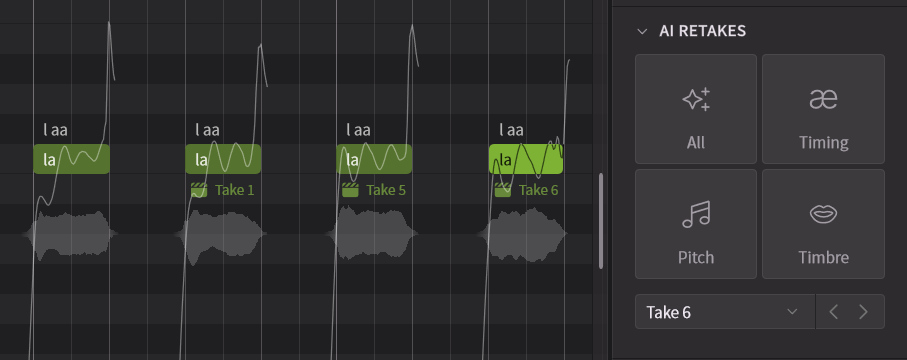
- All: Retakes pitch, timing, and timbre altogether.
- Pitch: Retakes the pitch curve.
- Timing: Retakes the timing and length of phonemes. The generated results can be checked in the Phoneme Timing panel.
- Timbre: Retakes timbre and pronunciation.
¶ Select Takes
- When there are multiple takes for a note, you can select a take by clicking its name.
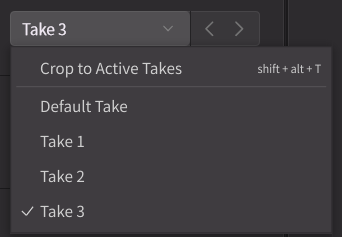
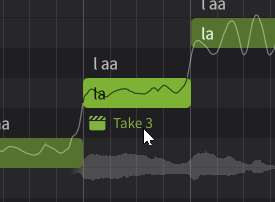
- Notes with applied AI Retakes will display the take name in the Piano Roll. You can select a take by clicking its name.
¶ Delete Takes
When there are multiple takes for a note, you can delete unselected takes by clicking "Crop to Active Takes".
¶ Note Language
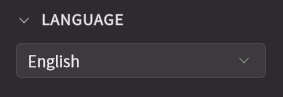
Select the desired language from the [Language] menu.
¶ Phonemes
In the Phoneme section, you can edit the phonemes displayed at the top of a note.
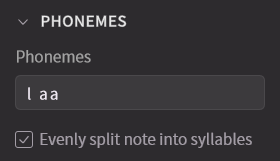
The phonemes available within the editor vary depending on the singing language.
You can check the available phonemes for each language in the Phoneme Reference List.
¶ Evenly Split Note Into Syllables
When a note has multiple syllables (vowels), you can select this option. Turning it on will make the vowel lengths equal. Turning it off will automatically adjust the pronunciation length.