In Synthesizer V Studio 2 Pro, you can perform high-degree editing based on the pitch curve generated by AI.
The generated pitch curve varies depending on the voice used.
Parameters Related to Pitch Curve Generation include the following:
- Note pitch, duration, and lyrics
- Pitch Mode (Sing or Rap)
- Vocal Modes
- Expression Pad
- AI Retakes
- Vibrato Modulation, Vibrato Envelope (Sing Mode only)
- Rap Intonation (Rap Mode only)
Parameters for Editing the Generated Pitch Curve include the following:
- Smart Pitch Controls
- Pitch Deviation in the Parameter Panel
¶ Display of the Pitch Curve
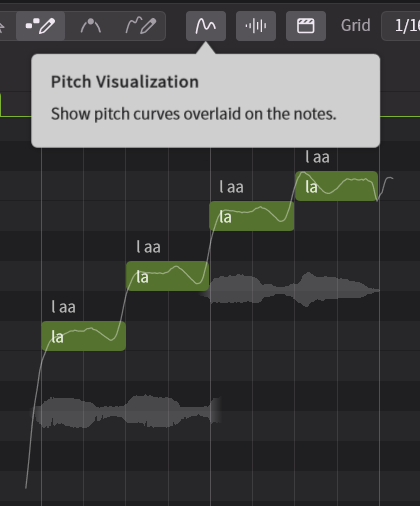
When [Pitch Visualization] is enabled, the pitch curve is displayed in the Piano Roll.
¶ Parameters Affecting the Pitch Curve
¶ Pitch Mode
In the Notes Panel, you can select Sing Mode or Rap Mode.
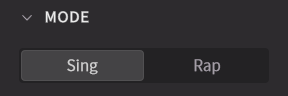
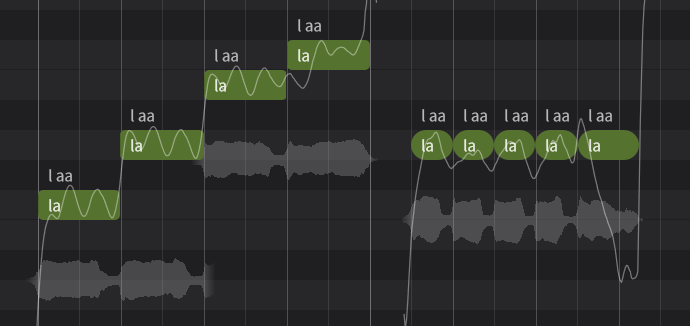
Notes in Sing Mode are displayed with sharp corners, while notes in Rap Mode are shown with rounded corners.
¶ Vocal Modes
The Vocal Modes feature, which allows you to change the characteristics and style of the voice, also applies to the pitch curve, generating pitch curves that correspond to the selected voice's character and vocal expression.
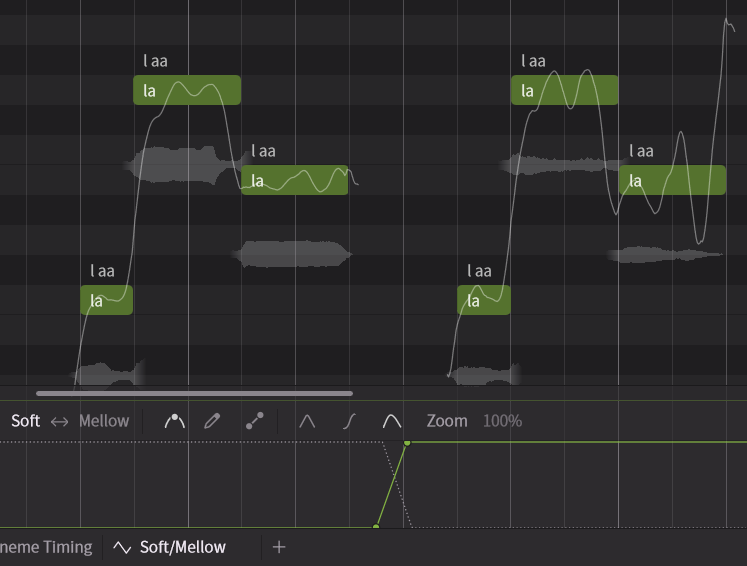
In the detailed settings of Vocal Modes, you can adjust the degree of application separately for pitch, timbre, and pronunciation.
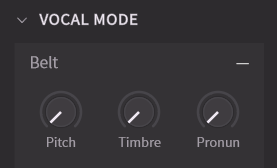
Vocal Modes can be configured in the Voice Panel and the Parameter Panel.
¶ Expression Pad
In the Notes Panel, the Expression Pad allows you to specify the direction of expression for pitch curves and timbre.
Expression Pad includes the following modes:
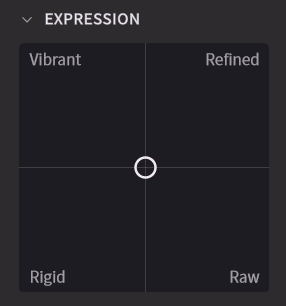
- Default (Center):
Generates the default singing style defined by the voice. - Vibrant (Top Left):
Generates a more expressive singing style than the default. It tends to produce more exaggerated expressions, such as deeper vibrato. - Refined (Top Right):
Generates a singing style that aligns more closely with mainstream preferences. It delivers stable and skillful vocals but is less suitable for producing varied or dynamic patterns. - Raw (Bottom Right):
Generates a highly dynamic singing style. Since internal processing like pitch correction is reduced, it can produce more human-like patterns, but it also increases the possibility of off-pitch results. - Rigid (Bottom Left):
Generates a flat singing style. The pitch curve remains steady, with only slight fluctuations near note boundaries. Additionally, the pitch curve is unaffected by AI Retake.
¶ AI Retakes
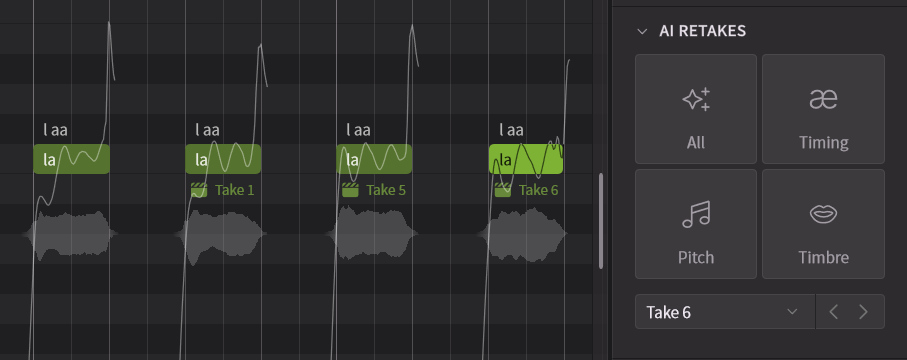
The AI Retake feature in the Notes Panel generates multiple pitch curve patterns, allowing you to select your preferred take.
¶ Vibrato Intensity
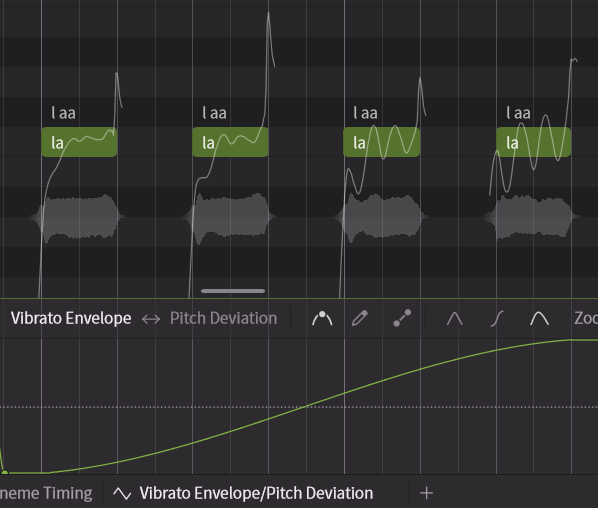
When the selected note is in Sing Mode, you can adjust Vibrato Modulation in the Notes Panel.
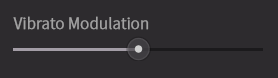
Additionally, this can be automated in the Parameter Panel.
¶ Rap Intonation
In Rap Mode, you can edit the rap intonation and tone.
For more details, see Rap Mode.
¶ Direct Pitch Editing
¶ Smart Pitch Controls
Smart Pitch Controls allows intuitive pitch editing using control points and curves.
When Smart Pitch Controls is placed on the piano roll, a pitch curve passing through its control points and curves is generated.
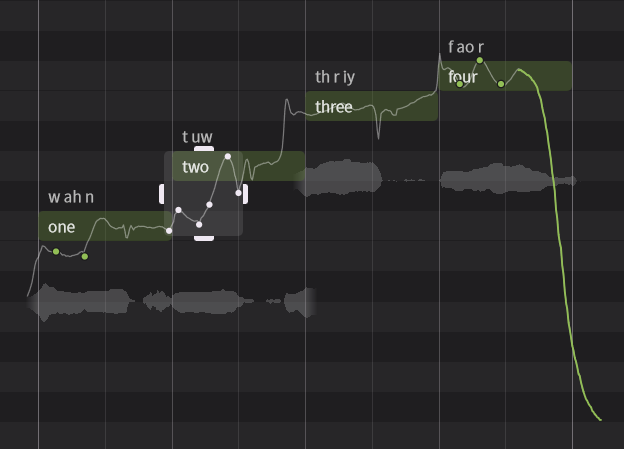
You can use the Pitch Control Curves Mode to draw pitch curves on the Piano Roll.
You can use the Pitch Control Points Mode to move or scale control points and curves. The speed and depth of vibrato can also be controlled with intuitive operations.
For how to operate Smart Pitch Controls, please refer to the “Piano Roll”.
¶ Pitch Deviation
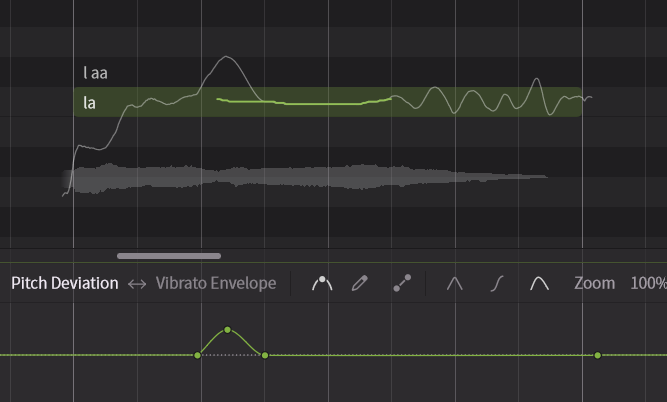
Pitch Deviation in the Parameter Panel allows fine-tuning of the pitch curve.
Pitch Deviation is combined with pitch curves generated by AI and Smart Pitch Controls.
This feature is primarily used to maintain compatibility with previous versions.
¶ Reset Pitch
Select a note, right-click, and choose [Reset Pitch] to reset the following parameters:
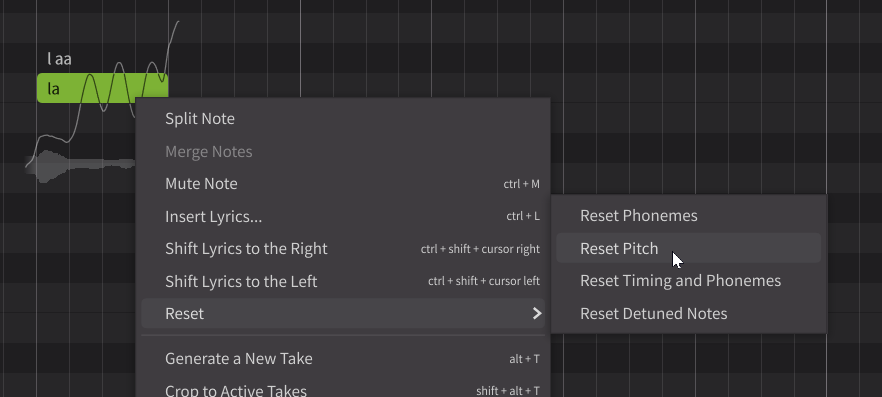
- Control points and curves from Smart Pitch Controls
- Pitch Deviation in the Parameter Panel
- Vibrato Modulation in the Notes Panel
- Rap Intonation
To select notes in the Piano Roll, switch to the Note Editing Mode or Note Creation Mode.

¶ Fixing the Pitch Curve
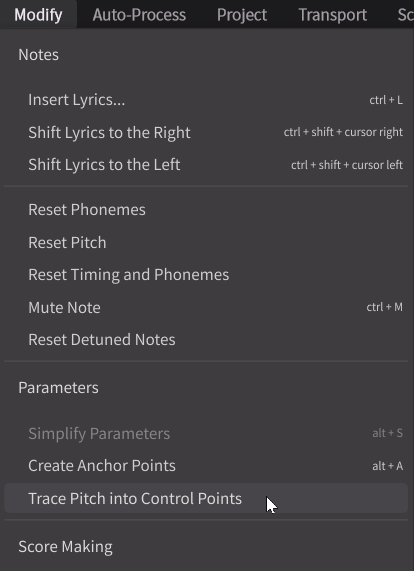
If you want to switch to a different voice while maintaining the pitch curve, use [Modify] > [Parameters] > [Trace Pitch into Control Points].
¶ Tracing the Pitch Curve of Audio
The Voice-to-MIDI Conversion feature can also reflect pitch curves when converting audio to notes.
¶ Creating Mechanical / Synthetic-Sounding Pitch Styles
In Synthesizer V Studio 2 Pro, pitch curves are always generated automatically. However, by using the Rigid Expression quadrant, which generates only flat pitch curves, you can create mechanical sounds or personalized pitch styles.
-
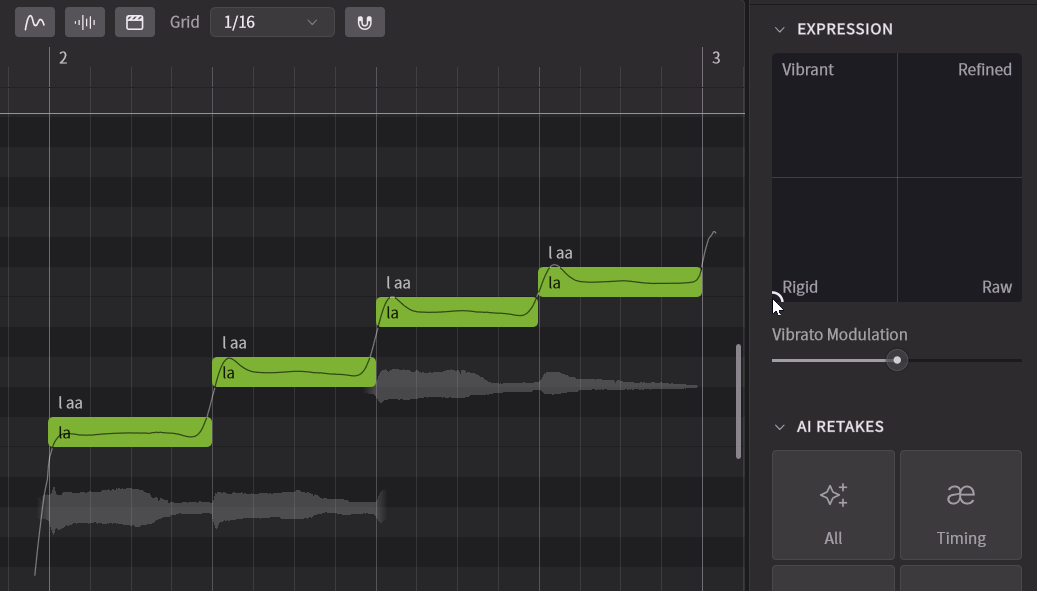
Select a note, then move the cursor to Rigid at the bottom left of Expression Pad in the Notes Panel. In this mode, the pitch curve is flattened, and only slight fluctuations occur near the note boundaries.
-
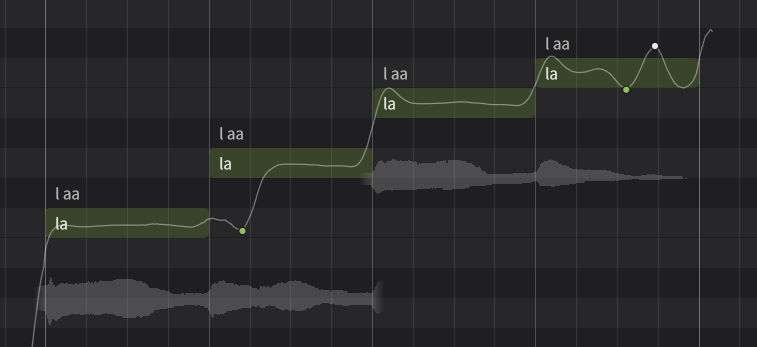
Add control points using Smart Pitch Controls. Stable vibrato or regular pitch curves will be generated along these control points.
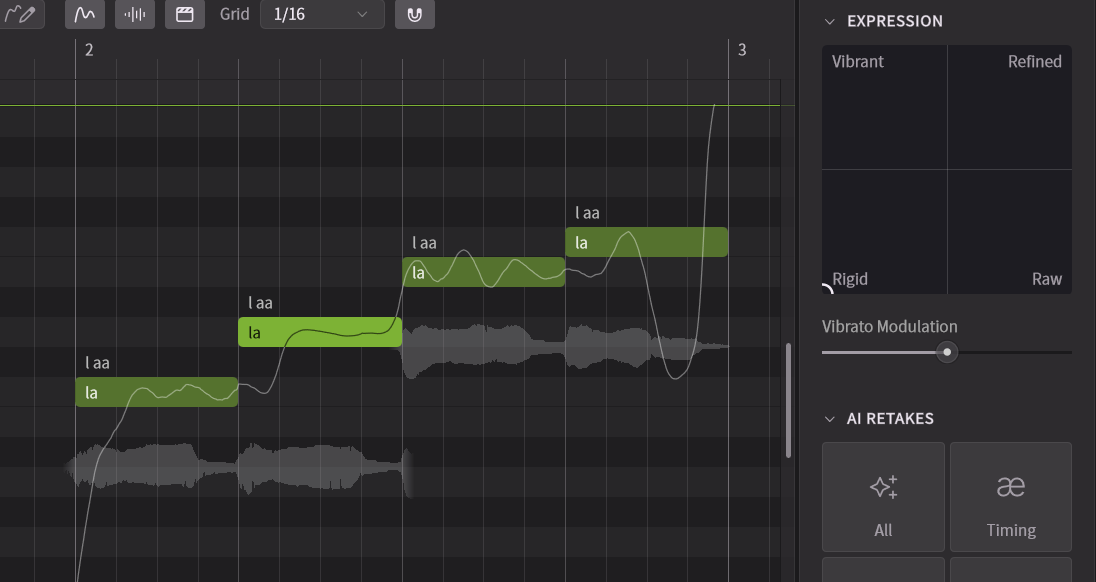
Since the Expression Pad can be set for each note, you can combine precise control in Rigid quadrant with more natural pitch curves using other quadrants within a single phrase.
The Rigid quadrant is available only for Version 2 voices.
For Version 1 voices used in the Version 2 editor by compatibility, the Rigid quadrant is provided instead, which tends to generate relatively flat pitch curves.