In the Parameter Panel, you can use control points to create more dynamic expressions. For example, you can set different voice characteristics or elements at the beginning and end of a note, or configure parameters across multiple notes. Up to three Parameter Panels can be placed.
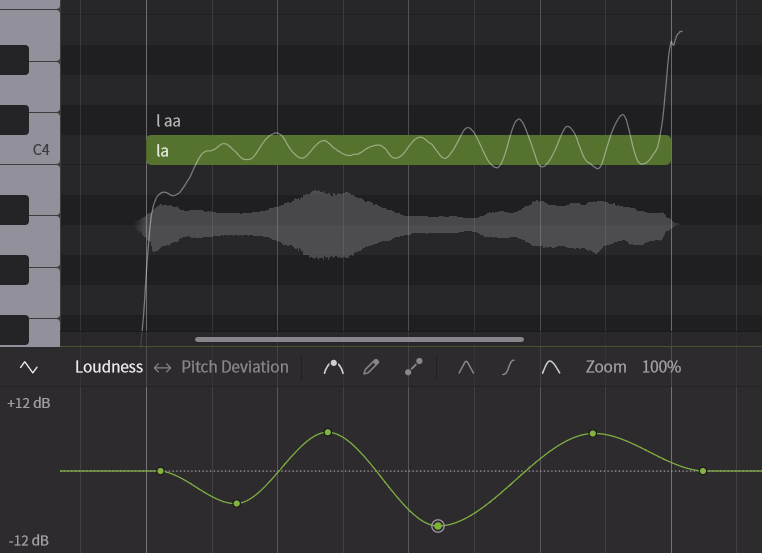
¶ How to Open the Parameter Panel
- Click the tab at the bottom of the Piano Roll to open and close it.
- Click the + button to the right of the Parameter Panel tab to add another Parameter Panel. Up to three Parameter Panels can be added.
- Click the × button that appears when you mouse over the Parameter Panel tab to close it.
¶ Parameters Available in the Parameter Panel
The Parameter Panel handles Parameters, which are common to all voices, and Vocal Modes, which are specific to voice.
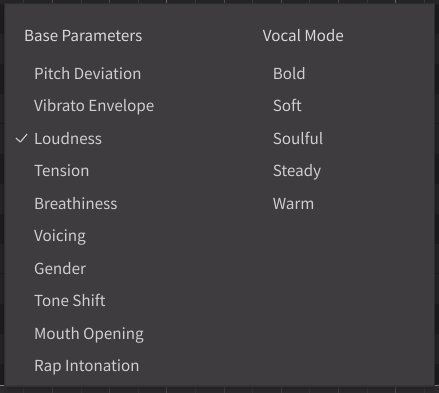
Some Parameters and all Vocal Modes can have their values set for the entire note group in the Voice Panel.
Values set in the Voice Panel are added to the control points in the Parameter Panel.
¶ Parameters
Base parameters are parameters that can be used universally across all voices.
You can adjust voice texture, volume, pitch, and more.
For the lineup of base parameters, please refer to Base Parameters.
¶ Vocal Modes
The Vocal Modes feature allows you to change the expression, timbre, and overall atmosphere of the voice.
The number and types of Vocal Modes vary depending on the voice.
In the Parameter Panel, you can automate the overall level of pitch, timbre, and pronunciation for Vocal Modes.
To individually adjust the level of pitch, timbre, and pronunciation, use the Voice Panel.
¶ Set Parameters for Edit/Display
You can choose two types of parameters: those displayed and edited at the forefront, and those displayed in the background.
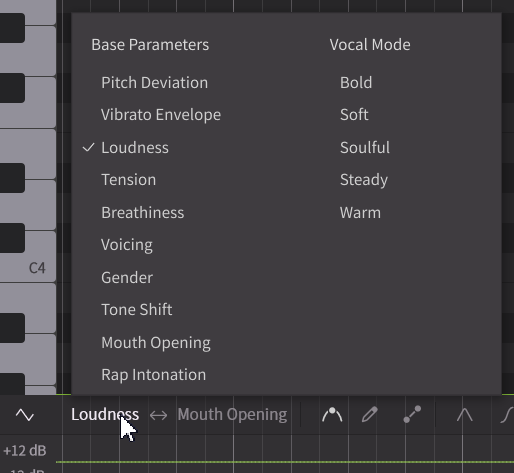
- Click on the parameter name on the left side to select the parameter you want to edit.
- Click on a parameter name on the right side to select the parameter you want to display in the background.
- Click the Exchange Button to exchange the edit/display parameters.
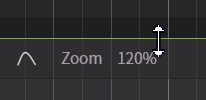
- Some parameters allow you to change the vertical zoom level by dragging the [Zoom] number or rotating the mouse wheel.
¶ Edit Tools in the Parameter Panel
¶ Control Point Tool
These tools allow you to add, select, and move control points.
¶ Freehand Drawing Tool
This tool allows you to draw parameter curves by dragging the mouse.
If [Hide Points In Freehand Mode] is checked in the Settings panel, control points will be hidden and only the curve will be displayed.
¶ Line Drawing Tool
This tool adds control points only at the starting and ending points when you drag the mouse, deleting any control points in between.
¶ Add Control Points
- Double-click with the Control Point Tool to add a control point.
- Drag with the Freehand Drawing Tool to draw a curve. After dragging, control points will be added along the drawn curve.
- Drag with the Line Drawing Tool to draw a line. After dragging, control points will be added only at the starting and ending points, and the curve will be interpolated according to the parameter interpolation mode.
¶ Set Parameter Interpolation Modes
This sets the shape of the curve that interpolates control points. You can set different interpolation modes for each parameter.
- Linear: Connects control points with straight lines.
- Cosine: Interpolates between control points with a curve, creating a smooth connection.
- Spline: Performs cubic spline interpolation between control points for an even smoother connection.
¶ Select Control Points
Use the Control Point Tool to select control points.
- Click on a control point to select it.
- Use Ctrl/Command or Shift for multiple selections.
- Pressing Ctrl/Command while clicking on a selected control point will toggle its selection.
- Pressing Shift while clicking on a selected control point will select all control points between the starting point and clicked point.
- Drag while pressing Shift to range-select control points.
- Press Ctrl+A/Command+A to select all control points.
- Press Ctrl+Shift+A or Command+Shift+A to select all control points for every parameter. This includes Parameters that are not currently being edited or displayed, as well as Vocal Modes.
- Press Esc to deselect all control points.
¶ Select Control Points Associated with Notes
To move or copy notes and control points together, you can select all control points located at the same position as the notes.
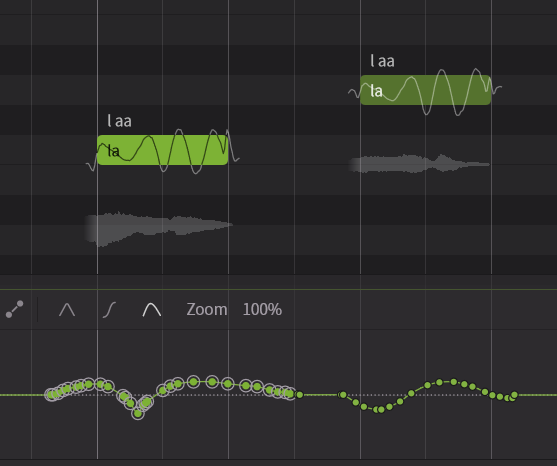
- Select a note, and then click [Edit] > [Select Parameters for Notes] in the menu bar.
- Right-click on a note and select [Select Parameters for Notes].
- Press Ctrl + Alt + A or Command + Option + A.
¶ Simplify Control Points
Reduces the number of control points in the selected range, simplifying the curve.
Click on [Modify] > [Parameters] > [Simplify Parameters] in the menu bar. (Or press Alt+S/Option+S)
¶ Move Control Points
Use the Control Point Tool to select control points.
- Drag selected control points to move them. Multiple selections will be moved together.
- Pressing Shift while dragging will constrain the movement of selected control points to the vertical axis only.
- Pressing Ctrl/Command while dragging will constrain the movement of selected control points to the horizontal axis only.
- Pressing Shift+Ctrl/Shift+Command while dragging will slow down the movement of control points for more precise adjustments.
¶ Delete Control Points
- Select the control point(s) and press Delete, or click on [Edit] > [Selection] > [Delete Selection].
- With the Freehand Drawing Tool, right-click and drag to delete control points.
In the Settings panel, you can choose between "Set to zero" or "Remove the points" for the action when deleting parameters with the pen tool.
¶ Copy and Paste Control Points
- Right-click on the control point and select [Copy] (or press Ctrl+C/Command+C) to copy the selected control point(s) to the clipboard.
- Right-click on the control point and select [Cut] (or press Ctrl+X/Command+X) to cut the selected control point(s) (copying them to the clipboard and deleting them).
- Right-click at the desired pasting location and select [Paste] (or press Ctrl+V/Command+V) to paste the copied control point(s) from the clipboard.
- The [Copy], [Cut], and [Paste] menus are also accessible from the [Edit] > [Clipboard] menu in the menu bar.
When pasting for the first time, choose between "Paste at playhead" or "Paste at the same screen position."
For more details, see "Settings".