The Arrangement area allows you to manage tracks, move note groups, and display tempo/time signature lanes.
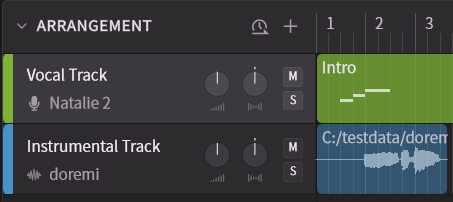
Types of Tracks available:
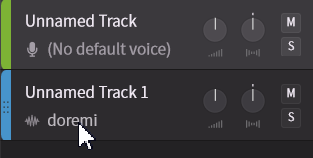
- Track: This track is for creating and editing vocals. It includes notes, various parameters, and settings for the voice.
- Instrumental Track: You can load and play audio data such as accompaniment or voice recordings. The waveform is displayed on the timeline.
¶ Tempo/Time Signature Lane
Click Show Tempo/Time Signature Lanes to open and close the tempo/time signature lane.
For details, please refer to "Tempo and Time Signature".
¶ Tracks
¶ Create a Track
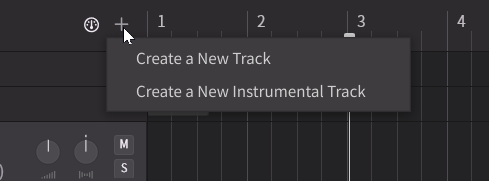
Click the + button in the Arrangement area, or right-click on the empty space below a track and select Create a New Track.
¶ Select a Voice
Click the voice name of the track (or "[No default voice]" if none is selected) and choose the desired voice.
The voice for a track can be changed at any time.
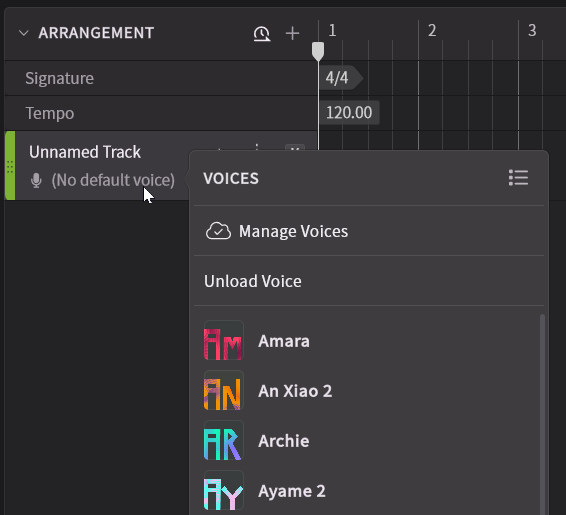
Voices that have been purchased but not yet installed can be installed from this menu, as long as the license has been added to your account.
¶ Select a Track
You can operate the selected track in the Piano Roll area.
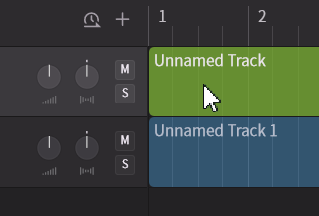
- Click on the empty space in the header section of the track.
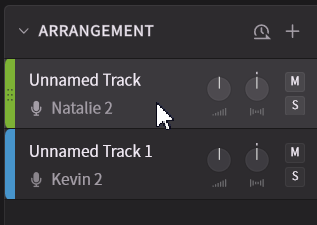
- Clicking on a note group located in the track will select that track.
¶ Create and Move Note Groups
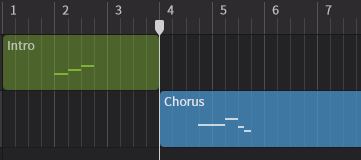
Create note groups on a track and manipulate notes and parameters within them.
For details, please refer to "Note Groups".
¶ Sync Tracks and Local Tracks
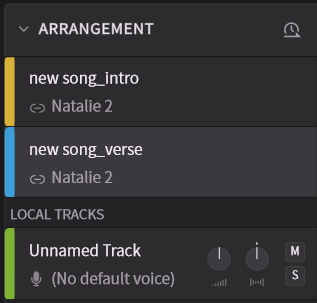
In Full ARA Mode, two types of tracks are displayed: Sync Tracks and Local Tracks.
For details, please refer to "Full ARA Mode Setup".
¶ Instrumental Tracks
Instrumental tracks support audio formats such as WAV, FLAC, and OGG.
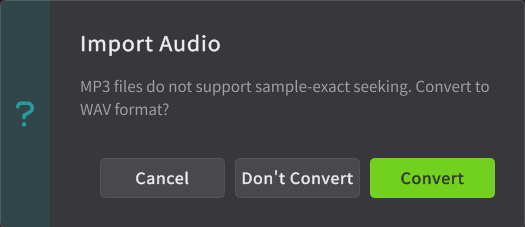
MP3 files can also be imported, but you can choose to convert them to WAV format upon import, since using them on MP3 may result in playback timing errors.
¶ Create a New Instrumental Track
- Click the + button in the track area, or right-click on the empty space below a track and select Create a New Instrumental Track.
A file selection dialog will open; choose the audio file you want to import.
- In the menu bar, click [File] > [Import] > [Import Audio...].
- Use Explorer (Windows) / Finder (Mac) to locate the audio file you want to open and drag and drop it into the Synthesizer V Studio 2 Pro window.
¶ Select an Audio
Click on the audio filename of the audio track and select the desired file.
¶ BPM Detection
Detects the tempo of the audio and displays the BPM and beat grid.
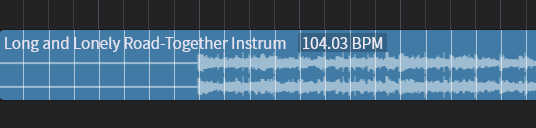
- Right-click on the audio and select [Detect Tempo].
- After tempo detection, right-clicking on the audio again allows you to select other BPM candidates.
- If [Automatically Detect Tempo After Importing Audio] is enabled in Settings, the tempo will be automatically detected when importing audio.
¶ Edit an Audio
¶ Moving
- Move the audio by dragging it. If multiple audio files are selected, they will move together.
- Holding Ctrl + Alt/Command + Option while dragging will move the audio without snapping to the grid.
¶ Changing the Length
Drag the start or the end of the audio to change its length.
¶ Voice to MIDI Conversion Function
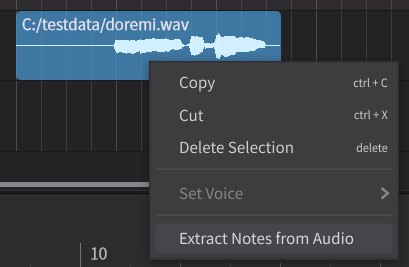
Extract pitch and lyrics from audio and convert it to notes.
For details, please refer to "Voice-to-MIDI Conversion".
¶ Grid Size and Snap Settings
When snap is enabled for a track, note groups and audio will snap (adhere) to grid lines of a specified width.
You can set the width of the grid lines in the menu-bar under: [View] > [Arrangement] > [Grid and Snapping]
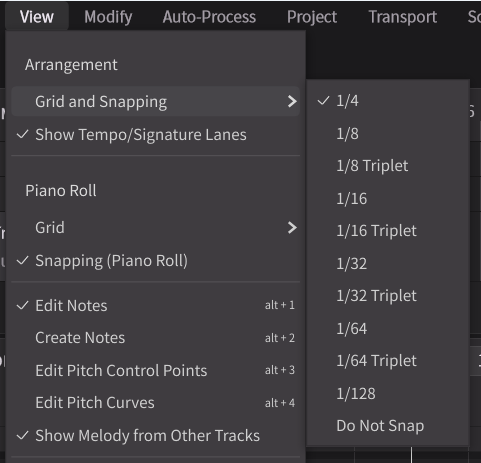
You can set separate grid sizes for the arrangement area and the piano roll.
¶ Duplicate a Track
Right-click on the empty space in the header section of the track.
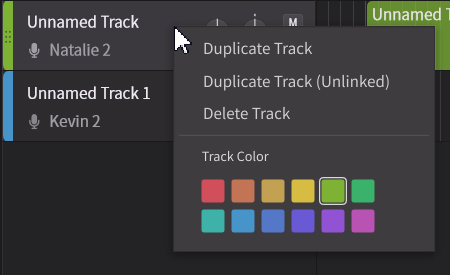
- Selecting [Duplicate Track] will create a linked group of the note groups on the track, where edits are shared.
- Selecting [Duplicate Track (Unlinked)] will allow you to manipulate the duplicated note groups independently.
¶ Separating Unison into Multiple Tracks
When a track contains a note group using the Unison Function, you can use the [Separate Unison into Multiple Tracks] option from the track's right-click menu.
This allows each singer in the unison to be separated into individual tracks.
For more details, see "Unison and Choir".
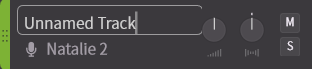
¶ Rename Track
Double-click on the track name and enter a new name.
¶ Change Track color
Right-click on the empty space in the track header and select a new track color.
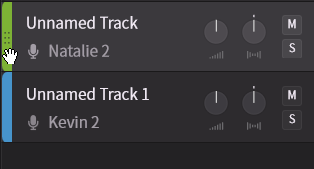
¶ Reorder Tracks
Drag the colored area at the left end of a track to rearrange the display order of tracks.
¶ Track Mixer
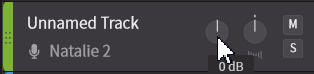
¶ Volume
- Drag the volume knob of the track. Or, place the mouse cursor over the volume knob and rotate the mousewheel.
- Reset the volume knob by double-clicking on it.
¶ Panning
- Drag the pan knob on the track. Or, place the mouse cursor over the pan knob and rotate the mouse wheel.
- Reset by double-clicking on the pan knob.
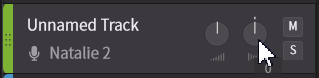
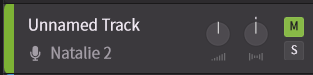
¶ Mute
- Clicking the Mute button on a track will mute the sound of that track. Click again to unmute.
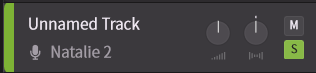
¶ Solo
- Clicking a track's Solo button will cause only the soloed track to be played. Click again to un-solo.
¶ Delete Track
- Right-click on the empty space in the track header and select [Delete Track].