For information on the types of plugins included with Synthesizer V Studio 2 Pro and how to use them, please refer to "Plugins and DAW Integration".
In Full ARA mode, the ARA plugin accesses the audio in the DAW, and note groups are created in the plugin corresponding to the placement of the audio clips on the DAW.
You can also use Voice-to-MIDI Conversion directly without importing audio.
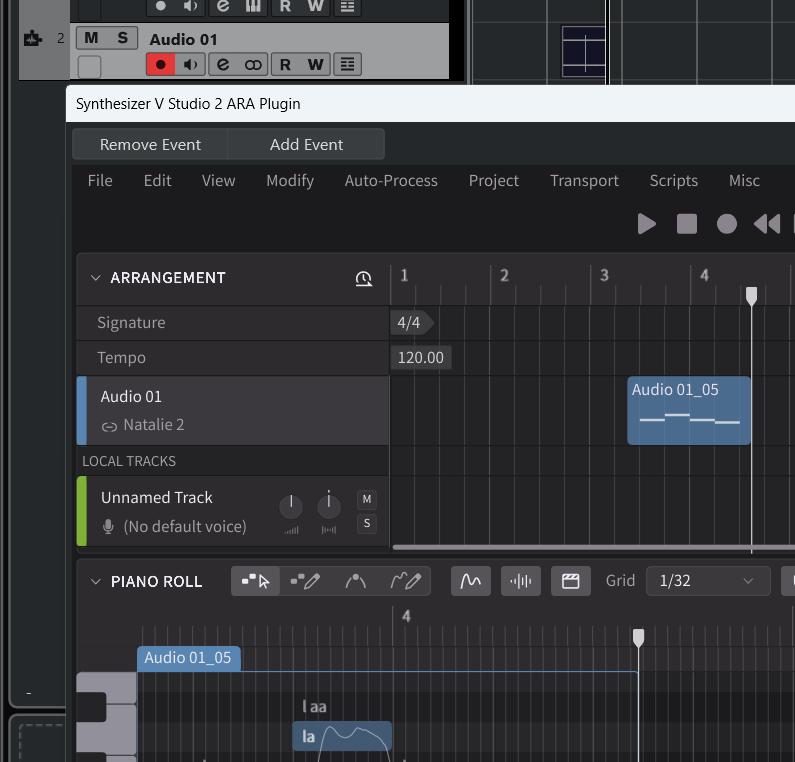
A separate audio file is required to use the Full ARA Mode.
Full ARA mode disables certain features of Synthesizer V Studio, including the creation, copying and pasting of note groups and tracks inside the plugin. Instead, the DAW takes over the responsibility of note group and track management.While the Full ARA Mode offers the highest level of capability, it may necessitate adjustments to your workflow. Consider selecting ARA Bridge Mode if Full ARA Mode is not compatible with your workflow.
¶ Host Support Status
Full ARA Mode can only be used with the following DAWs.
(The lineups of DAWs that can use ARA Bridge Mode and Full ARA Mode differ.)
¶ DAWs That Support Full ARA Mode
- Studio One 5 or later (Artist/Professional) / Fender Studio
- Cubase 12 or later (Artist/Pro)
- REAPER 6 or later
- Cakewalk
- ABILITY5 Pro
- ProTools
Full ARA mode is only available in the VST3/AAX versions. It is not available in the Audio Unit version.
¶ Full ARA Mode Setup
ARA plugins are generally designed to be attached to audio clips within a DAW.
To start in Full ARA Mode, you will need either the audio you want to use for Voice-to-MIDI Conversion, or a dummy audio file.
The original sound of the audio to which the ARA plugin is attached will not be played.
If there is no dummy audio on the DAW track, the data may not be saved correctly. Please make sure to place an audio clip first.
- Create an Audio Track and import an audio file.
The ARA plugin doesn't work with empty audio events. An audio file is required.
- Add "Synthesizer V Studio 2 ARA Plugin" from VST3 as an event FX from the list of effects.
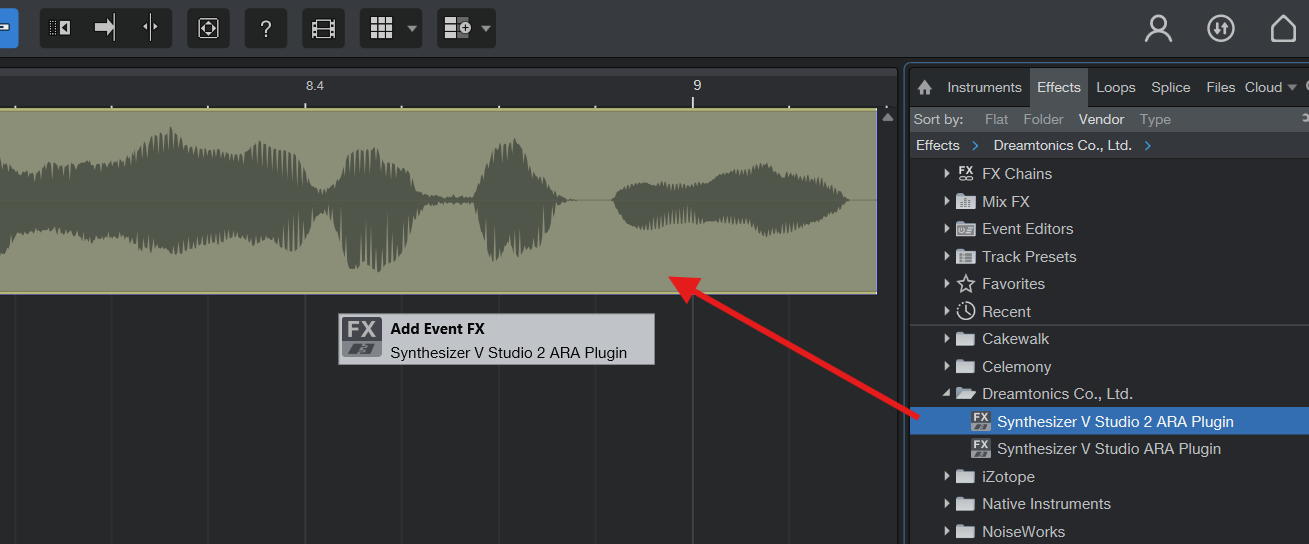
To attach an event FX to an audio event.
In Studio One 6.2 and later versions, drag & drop the "Synthesizer V Studio 2 ARA Plugin" to the audio event.
In Studio One 6.1 and earlier, while holding Alt/Option drag and drop the "Synthesizer V Studio 2 ARA Plugin" onto the audio event.
- To load multiple audio events into the ARA plugin, attach the ARA plugin to each audio event.
- Create an Audio Track and import your audio files.
The ARA plugin doesn't work with empty audio events. An audio file is required.
-
Select "Synthesizer V Studio 2 ARA Plugin" in VST3 from the Extensions menu in the Track Inspector.
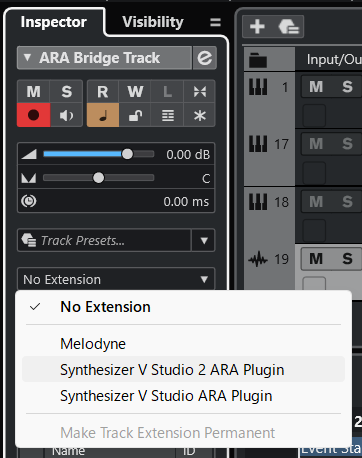
-
For tracks in which the ARA plugin is attached, adding new audio events will automatically load them into the ARA plugin.
To load audio from other tracks into the ARA plugin, attach the ARA plugin to each track.
In Cubase, if you record new audio on a track that currently has ARA attached, it will not be loaded into the ARA plugin.
-
Create a track and import the audio file.
-
From the FX menu, select "VST3: Synthesizer V Studio 2 ARA Plugin" and add it.
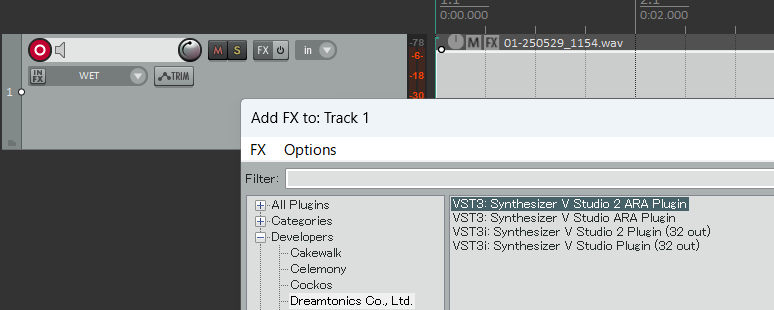
-
For tracks in which the ARA plugin is attached, adding new audio items will automatically load them into the ARA plugin.
To load audio from other tracks into the ARA plugin, attach the ARA plugin to each track.
-
Create an Audio Track and import an audio file.
-
Right-click on the audio clip and select "Synthesizer V Studio 2 ARA Plugin" from the Region FX menu.
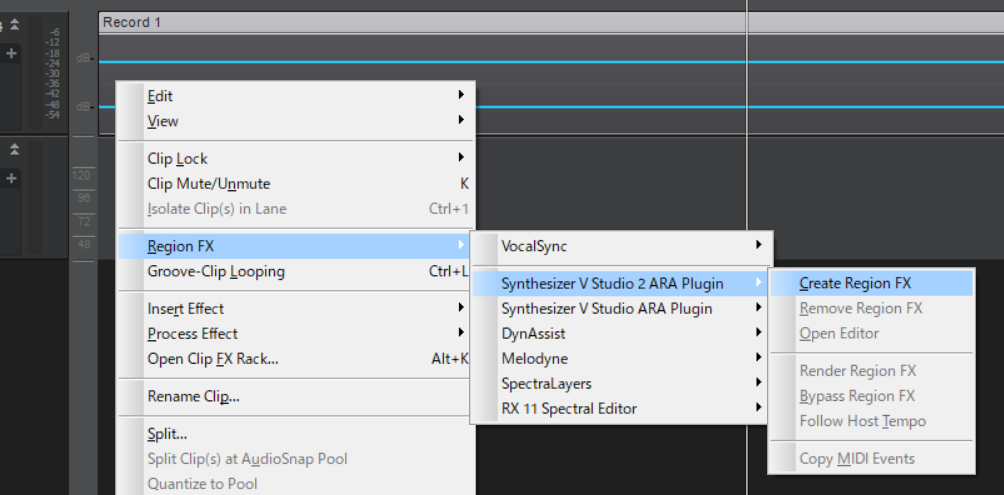
The ARA function cannot be activated properly because it is added as an Audio FX in the following way. Be sure to add it as a Region FX.
- Inserted in the FX rack of a track
- Dragging and dropping the "Synthesizer V Studio 2 ARA Plugin" from the Plugin Browser onto an audio clip
- To load multiple audio clips into the ARA plugin, attach the ARA plugin to each audio clip.
-
Create an Audio Track and import the audio file.
-
Click on the ARA Plugin Display section of the track and select "Synthesizer V Studio 2 ARA Plugin".
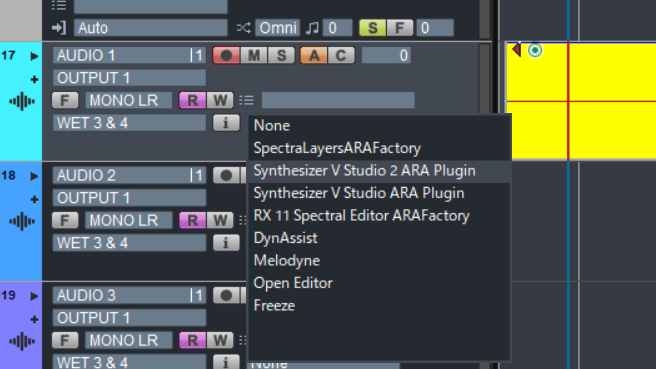
-
For tracks to which the ARA plugin is attached, adding new audio data will automatically load it into the ARA plugin.
To load audio from other tracks into the ARA plugin, attach the ARA plugin to each track.
-
Create an audio track and import an audio file.
-
Right-click on the audio clip and select "Synthesizer V Studio 2 Pro".
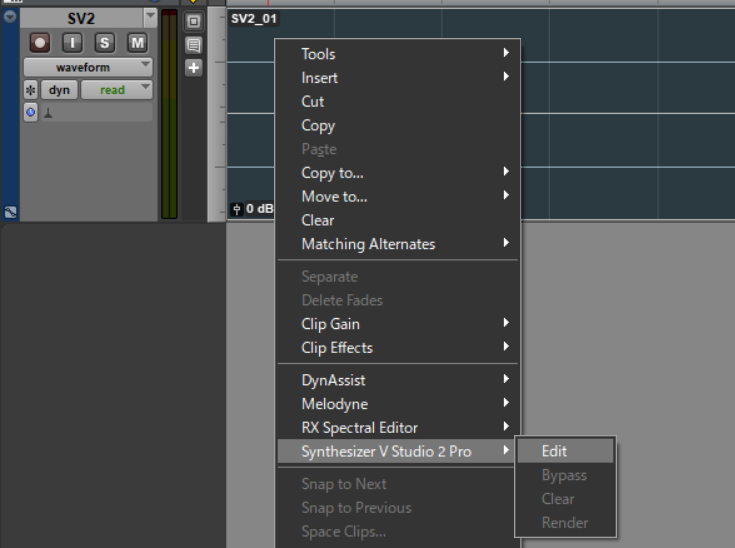
-
To load multiple audio clips into an ARA plug-in, attach the ARA plug-in to each audio clip.
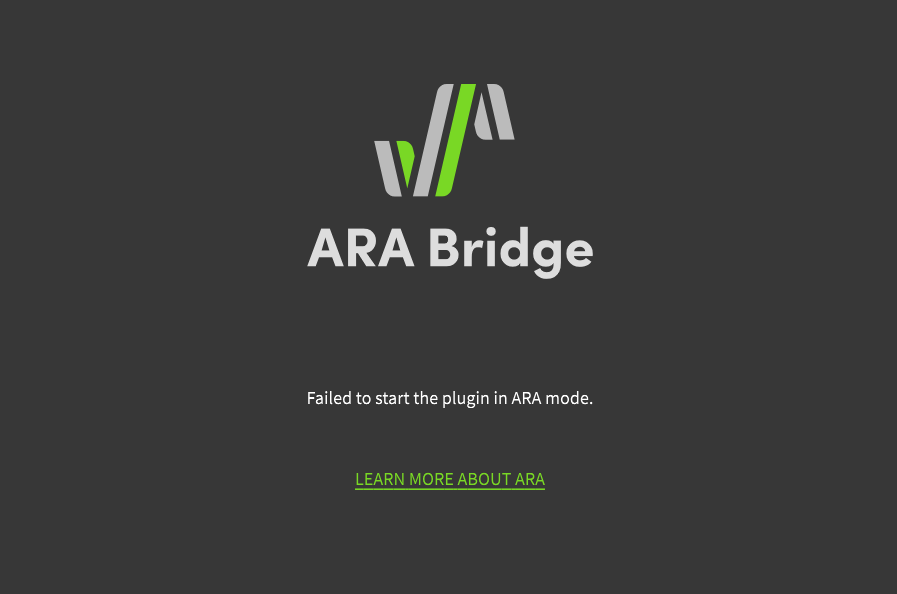
When you see the message "Failed to start the plugin in ARA mode."
The reasons could be, for example:
- Using a DAW that does not support full ARA mode
- Insert the ARA plugin as a normal non-ARA effect
- You are using the AU plugin.
¶ Synchronize Clip Placement in a Project
Setting up Full ARA Mode creates a Note Group in the ARA plug-in's Sync Track corresponding to each audio clip on your DAW.
The audio clips and note groups are mirrored and automatically reflect the position and length of the clips.
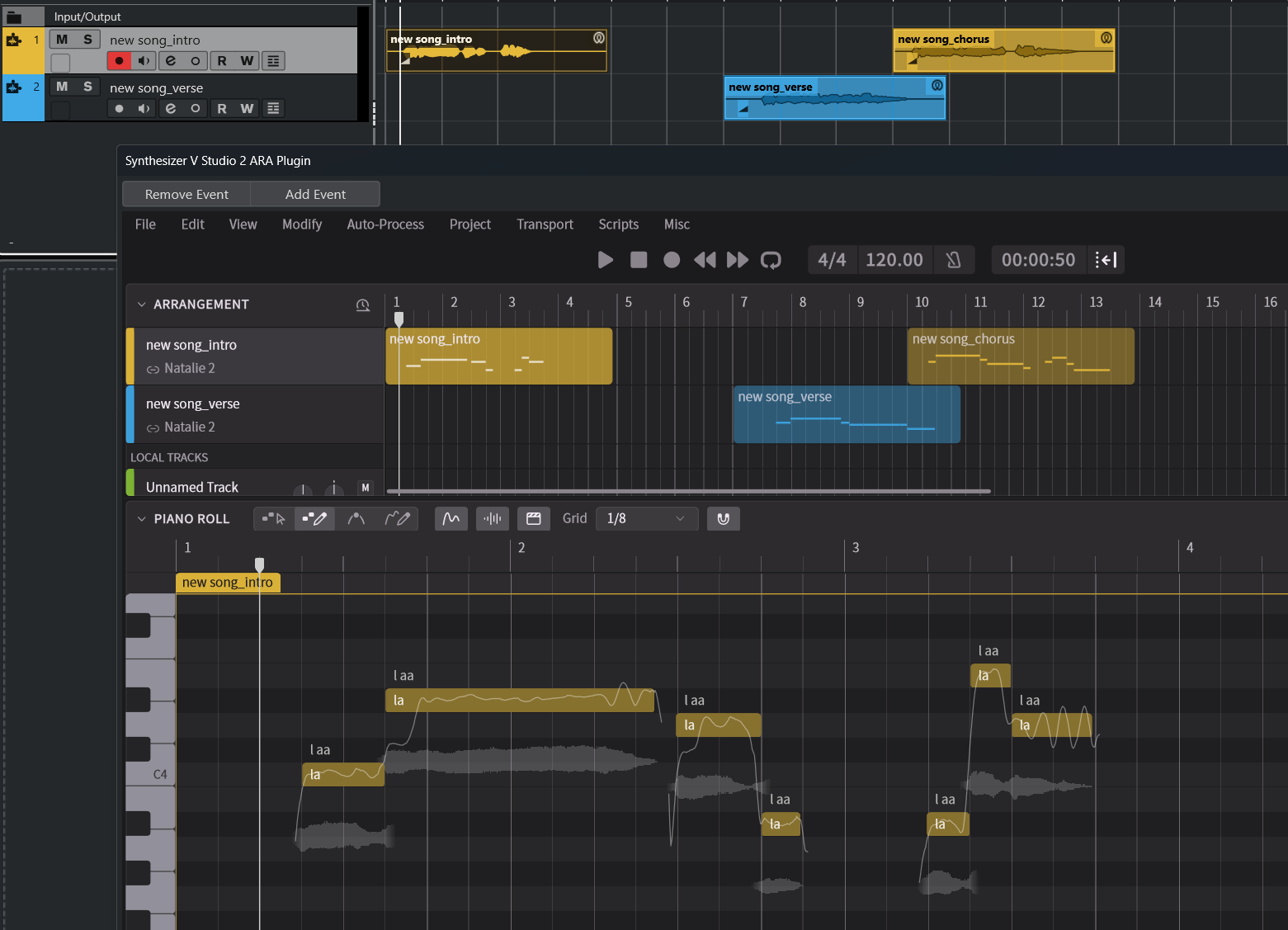
- Select a note group and enter notes within the note group's range. Alternatively, create notes using Voice-to-MIDI Conversion.
- Note that you cannot create new note groups within the plugin's Sync Tracks, nor can you move, split, or merge existing groups.
- The original sound of the audio to which the ARA plugin is attached will not be played back.
For details on note group specifications, see "Note Group".
¶ About the Shared Copies Feature of DAWs
Some DAWs have a feature called "shared copy" or "pool" that allows you to share the editing status of audio across multiple clips.
This feature can be used between audio clips that reference the same source file.
In Synthesizer V Studio, shared copy clips are treated as linked groups.
When you edit notes or control points in this scenario, the edits will be shared with other linked groups.
¶ Separate Shared Copies on the DAW side
Some DAWs have commands to disable the shared copies function and treat each clip as a separate entity.
Performing this action on the DAW side will unlink the groups within the ARA plugin.
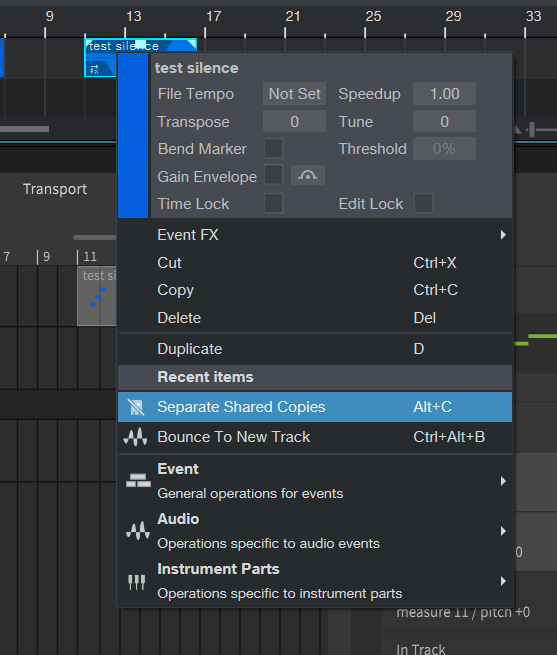
To separate a "shared copies" in Studio One, right-click on an audio event and select [Separate Shared Copies].
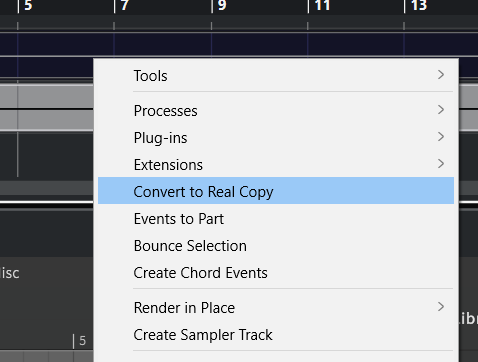
To isolate a "shared copies" in Cubase, right-click on an audio event and select [Convert to Real Copy].
Versions prior to REAPER 6 do not have a similar feature and all clips are treated as separate items.
REAPER 7 has a "Pool" feature.
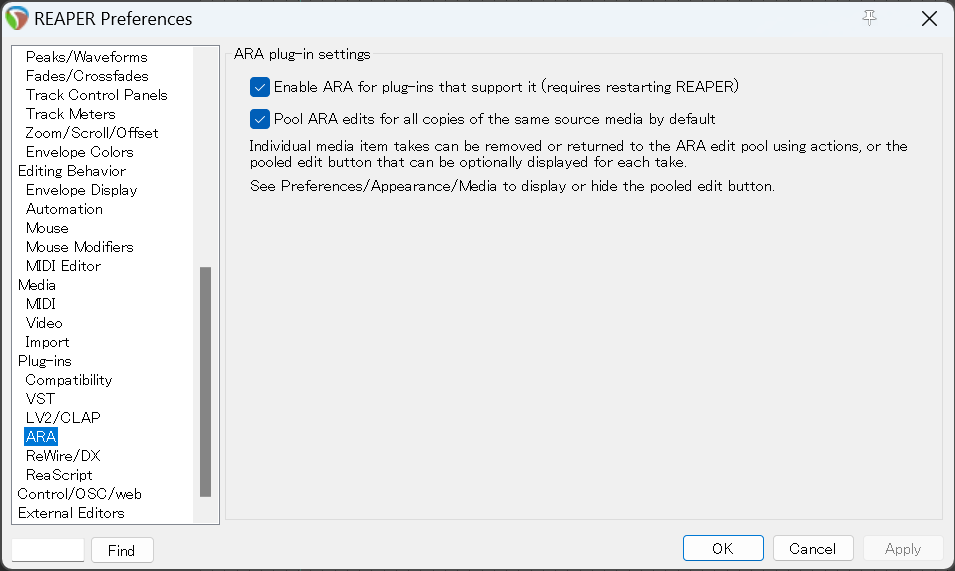
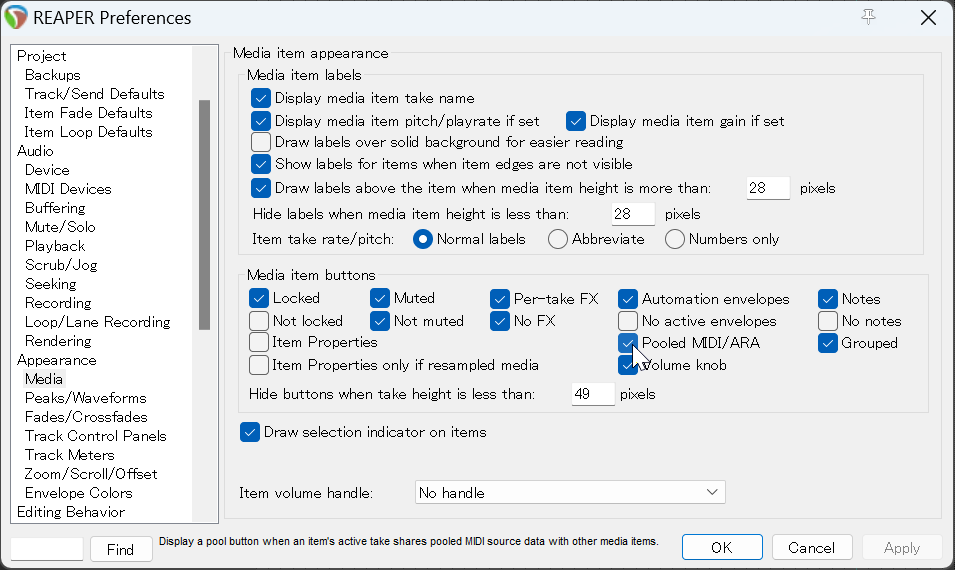
When the Pool feature allows the editing status of an ARA plugin to be shared with other items, an icon appears above the item. By clicking on it, the Pool can be released and the item can be separated.
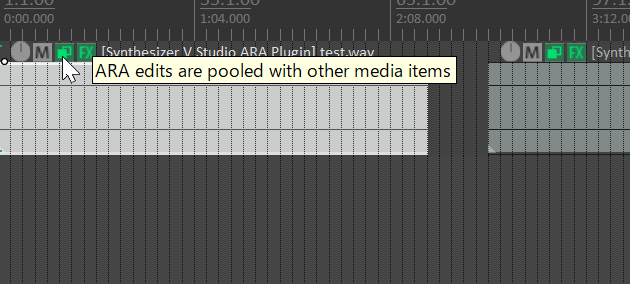
To use the Pool feature by default, go to Options > Preferences > Plugins > ARA in the menu bar and check [Pool ARA edits for all copies of the same source media by default].
To display the Pool button, go to Options > Preferences > Appearance > Media on the menu bar and check [Pooled MIDI/ARA].
¶ Synced Tracks and Local Tracks
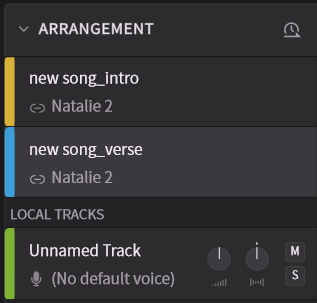
In Full ARA Mode, there are two types of tracks.
¶ Synced Track
It's a track synchronized with the audio clip in your DAW.
The audio from the Synced Track is routed to the corresponding track in the DAW for output.
¶ Local Track
This is a track for importing external files such as .svp files and MIDI files.
External files cannot be imported directly into the Sync Track. The imported notes will be placed on a Local Track. If necessary, copy the imported notes to a note group in the Sync Track.
The Local Track is a temporary storage place for imported data and cannot be used.
- During playback, the audio on the Local Track is routed to the currently selected track in the DAW (or the track where the clip is selected).
- The Local Track is muted when bounced and is not included in the mixdown.
ARA plugins attach to audio within a DAW track, rather than the track itself.
Therefore, audio on a Local Track is not routed to a specific track, but rather plays back mixed down with the audio of any Sync Tracks.
¶ What You Can Do in Full ARA Mode
¶ Playback and Tempo Sync
Similar to ARA Bridge Mode, playback within the ARA plugin will also synchronize with the playback in your DAW. The tempo set in your DAW will also sync with the tempo within the ARA plugin.
The tempo cannot be set in the ARA plugin; tempo markers must be entered on the DAW side.
When you change the tempo, the length (in seconds) of the generated vocals will change. However, the length of the audio in your DAW will remain the same. This can sometimes cause the length of the note groups on the Sync Track and the length of the notes within them to become misaligned.
If the content of the note group is longer than the audio, the overflowing portion will not be played.
¶ Work with Voice-to-MIDI Conversion
You can use Voice-to-MIDI Conversion without importing audio.
Right-click on a note group in the Synced Track and select [Extract Notes from Audio].
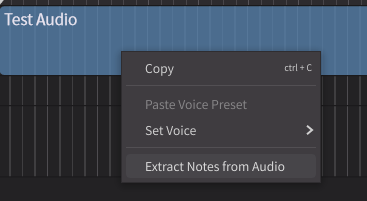
In Full ARA Mode, using Voice-to-MIDI conversion will erase notes and control points already in the note group and overwrite them with the converted data.
¶ Export Notes Directly to the DAW
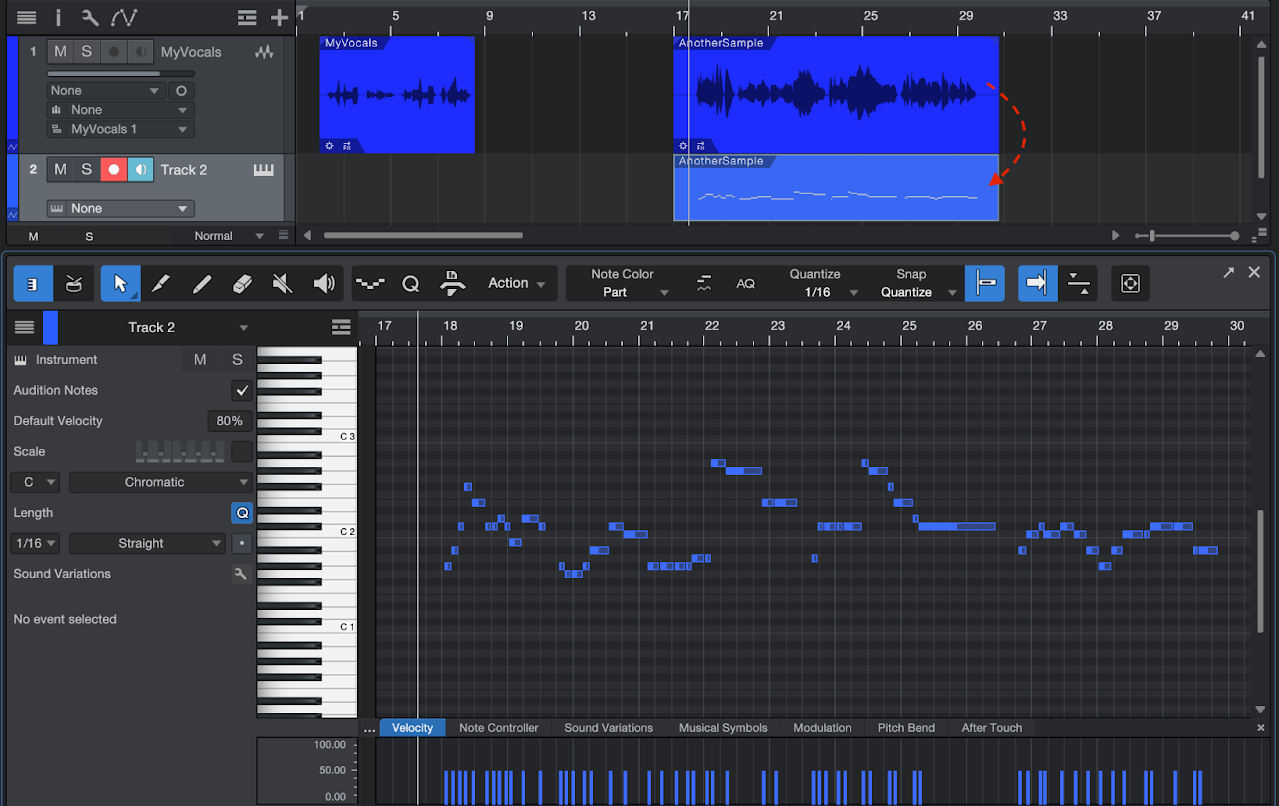
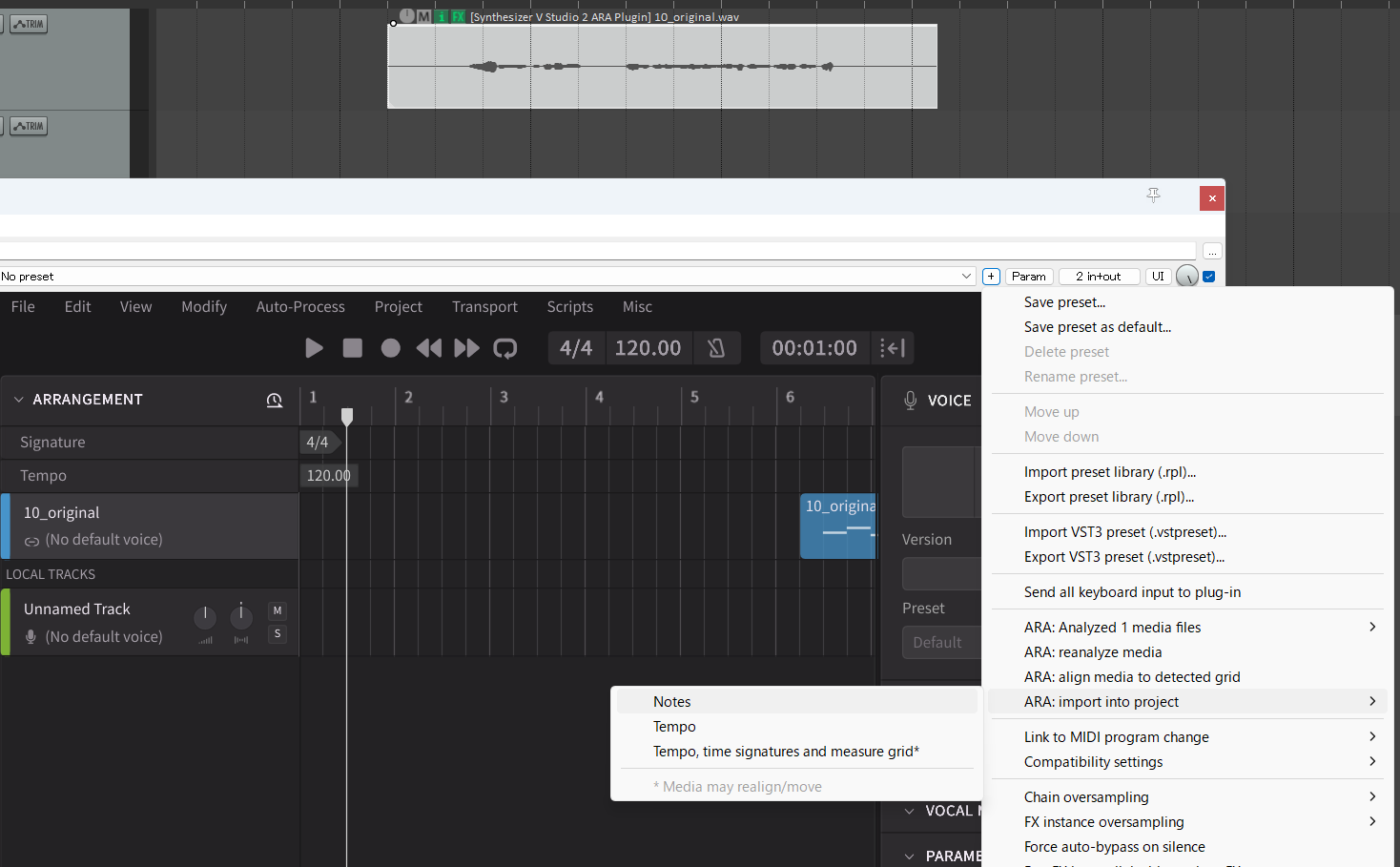
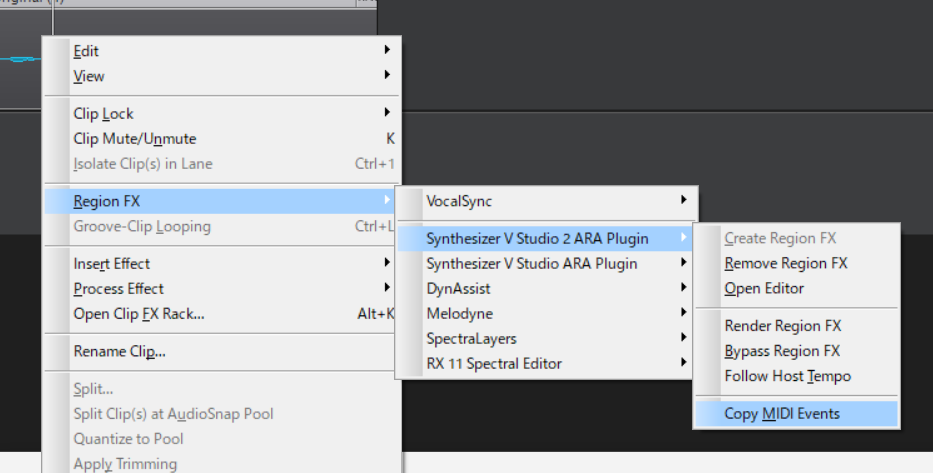
Some DAWs allow you to pass notes from the Synced Track as MIDI clips to the DAW.
In Studio One, drag audio events to an instrument track.
In REAPER, click the + button in the FX window and select [ARA: import into project] > [Notes] to create a MIDI item on a new track.
In Cakewalk, notes can be copied to the clipboard by right-clicking on an audio clip and selecting [Region FX] > [Synthesizer V Studio 2 ARA Plugin] > [Copy MIDI Events].
¶ Save Projects
Work done in the ARA plugin is always saved within the host application's (DAW) project.
¶ Save As...
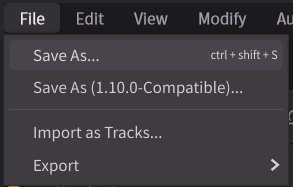
Clicking on [File] > [Save As...] in the menu bar will allow you to save the current project as a .svp file.
The .svp file is a project file format common to both the standalone and plugin versions of Synthesizer V Studio 2 Pro.
Even after saving, subsequent edits will continue to be saved within the DAW project and will not automatically overwrite the exported .svp file.