In the Render Panel, you can check the rendering status of each track in your project and output the rendered audio.
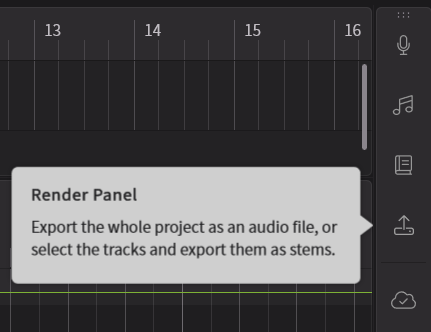
The Render Panel can be opened by clicking the fifth icon from the top in the sidebar.
For information on exporting MIDI files, please refer to "Project Management".
¶ Check the Rendering Progress
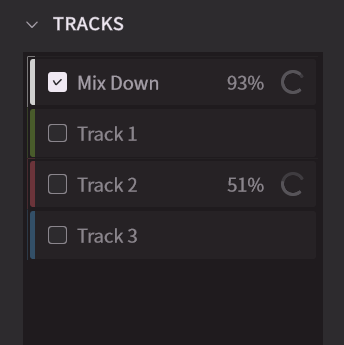
The [Tracks] section displays the rendering progress of each track as a percentage.
Completed tracks will not display a number.
¶ Export an Audio File
Render a mixdown or individual track audio and export it as a WAV file.
You can also separate and output Aspiration components.
¶ Export Audio Files
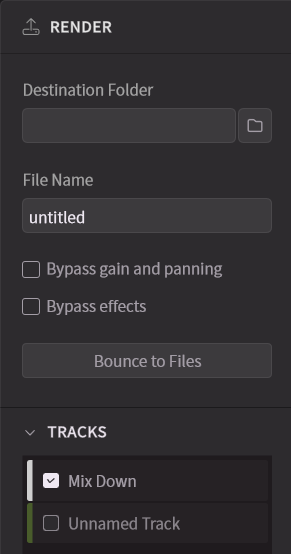
- Click the folder icon on the right side of [Destination Folder] and select the saving location.
- Enter a file name. The actual output file name will have the track name (or “MixDown”) at the end of the name you specify here.
- [Bypass gain and panning] outputs the track while bypassing the volume and pan settings in the mixer.
[Bypass effects] outputs audio while bypassing the settings in the Effect panel. - Select the tracks you want to export. By default, only the master (mixdown of the entire project) is selected.
- Enter a filename and click the Bounce to Files button.
¶ Format Settings
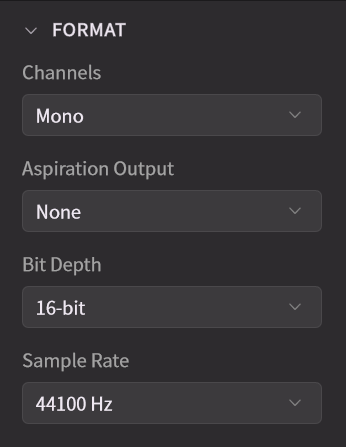
You can set/change the following format settings:
- Channels: Select the channel format from "Mono" or "Stereo". The default is "Mono". Select "Stereo" if you want to export a mixdown including accompaniment.
- Aspiration Output (Pro version only): Output setting for the aspiration component. Default is [None].
- Bit Depth: Sets the bit depth. Default is "16 bits".
- Sample Rate: Sets the sample rate. Default is "44100 Hz".
¶ Separate Voiceless Sounds Output
In Synthesizer V Studio 2 Pro, Aspiration components refer to the non-periodic components in speech, such as breath sounds, voiceless consonants, and noise during vocalization.
During audio rendering, you can separate the voice into Periodic components such as fundamental frequency and overtones and other Aspiration components.
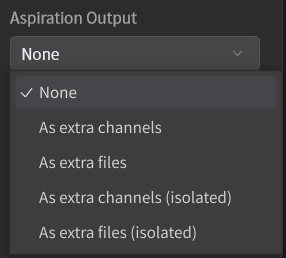
- None: Outputs standard rendering.
- As extra channels: Creates a standard channel and a channel with Aspiration components within the same file.
- As extra files: Outputs the standard rendering and the Aspiration components rendering as separate files.
- As extra channels (isolated): Creates a Periodic components channel and an Aspiration components channel within the same file.
- As extra files (isolated): Outputs the Periodic components rendering and the Aspiration components rendering as separate files.
¶ Rendering Cache
The rendering cache feature stores rendered phonemes, pitch, and audio to speed up processing when reopening a project.
The cache for all projects is stored in a single location, and its size increases as it is used.
¶ Saving the Cache
When the cache saving option is enabled, the cache is saved simultaneously when you save the project file.
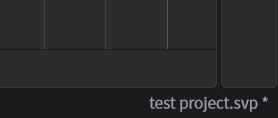
When an asterisk (*) appears at the right end of the status bar, the project and cache have either not been saved or have been modified after saving.
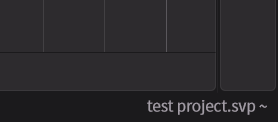
When a tilde (~) appears at the right end of the status bar, the project has been saved, but the cache has not.
If you close the project without saving, the cache will not be saved (updated).
Also, if rendering has not been completed when saving the project, only part of the cache will be saved.
¶ Render Cache Level
In the Settings panel, you can choose between saving all cache, which increases cache size, or saving only part of the cache to conserve space.
- Cache phonemes, pitch, and rendered audio: This can greatly reduce re-rendering the next time the project is opened, but the cache size will increase.
- Cache phonemes and pitch only: This slightly reduces re-rendering time when reopening the project and significantly reduces cache size compared to "Cache phonemes, pitch, and audio."
- Do not cache: All notes will be re-rendered when the project is reopened.
¶ Cache Location
By default, the cache is saved in the following location:
- Windows:
C:\Users\<username>\AppData\Roaming\Dreamtonics\Synthesizer V Studio 2\cache - macOS:
/Users/<username>/Library/Application Support/Dreamtonics/Synthesizer V Studio 2/cache
The cache location can be changed in the Settings panel, and an external drive can also be selected.
When changing the cache location, you can choose whether to move the existing cache to the new location.
¶ Deleting the Cache
The cache can be deleted using the following methods:
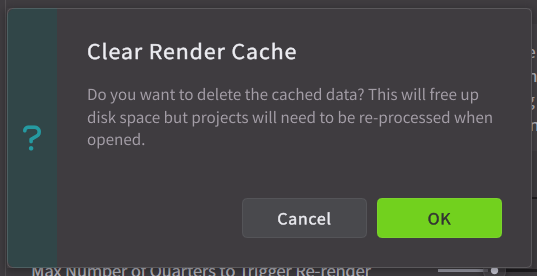
- In the Settings panel, changing [Render Cache Level] to [Disable caching] allows you to choose whether to delete the current cache.
- Use Explorer or Finder to manually delete the cache data.