Operations such as play and stop are performed in the Transport Area.

If your connected MIDI device has buttons for play, stop, fast forward, etc., you can use them to control the playback of Synthesizer V Studio 2 Pro.
For information on connecting MIDI devices, please refer to "Audio Setup".
¶ Play & Stop
- Start playback by clicking the [Play] button (or pressing Space).
- Stop playback by clicking the [Stop] button (or pressing Ctrl+Space/Command+Space). When stopped, the playhead will return to its original position.
- Pause playback by clicking the [Pause] button (or pressing Space).
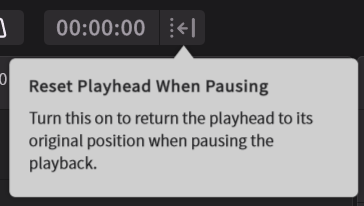
¶ Reset Playhead When Pausing
Whether the playhead returns to its original position or stops in place, when paused it can be toggled with the [Reset Playhead When Pausing] button.
¶ Follow Playhead During Playback
When [Follow Playheads During Playback] is enabled in the [Editor] section of the Settings panel, the playback bar will automatically scroll to the next page when it reaches the right edge of the screen.
¶ Move the Playhead
Click on the top of the Arrangement area or Piano Roll area to move the playhead.
Whether the playhead snaps to the grid when moved can be selected in Settings.
¶ Go To Beginning/End of Song

- Click the [Seek to the Begininning] button to go to the beginning of the song.
- Click the [Seek to the End] button (or press Ctrl+End/Command+End) to go to the end of the song.
¶ Move the Playhead One Measure
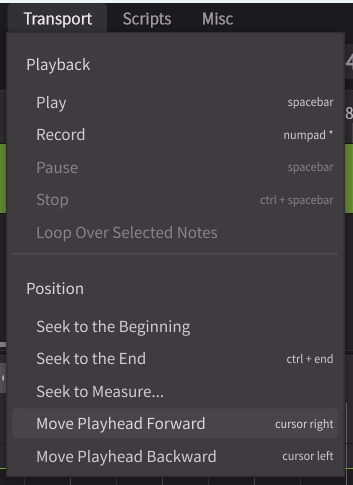
From the menu bar, go to [Transport] > [Move Playhead Forward/Backward] (or →←) to move the playback cursor one measure forward or backward.
¶ Move Playhead to Specific Measure
Click [Transport] > [Seek to Measure...] in the menu bar and move the playback bar to a specified measure.
¶ Loop Mode
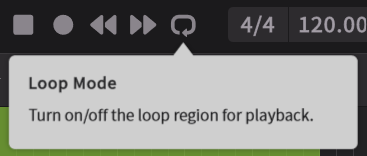
Click the [Loop Mode] button to toggle looped playback on and off.
¶ Adjust Loop Range
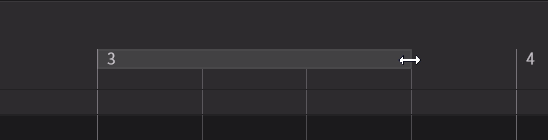
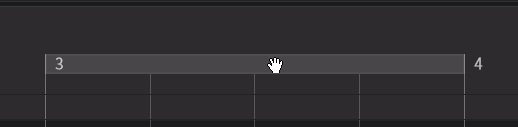
Drag the loop range marker horizontally on the ruler in the Arrangement area or Piano Roll area to adjust its length.
¶ Move Loop Range
Drag the loop range band horizontally on the ruler in the Arrangement area or Piano Roll area to move it.
¶ Record
Connect a MIDI device and record the notes played as you perform in real-time.
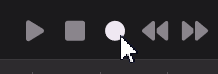
For information on how to use this feature, please refer to "Notes and Lyrics Input".
¶ Tempo and Time Signature Display
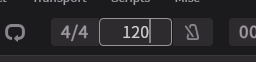
The Transport Area displays the current tempo and time signature at the start or top of the playback ruler.
These values can be edited by clicking on them.
¶ Metronome
Click the [Metronome] button to toggle the metronome sound on and off during playback.