The project is the file that contains all the editing details, including notes, tracks, instrumental tracks, tempo, etc.
Synthesizer V Studio projects are saved as .svp files.
Saving your edits allows you to resume your work the next time you open the project.
To start working, create a new project or open an existing one.
¶ Create a New Project
- When the editor is launched, a new project will be created automatically.
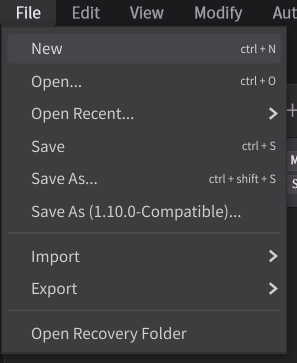
- Clicking on [File] > [New] (or Ctrl + N/Command + N) will close the current project and create a new one.
¶ Open a Project
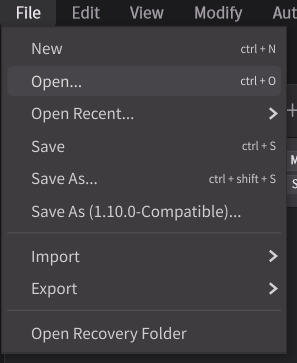
When opening a project, the currently active project will be closed and the selected project will be opened.
¶ Open a Synthesizer V Studio Project
- Click [File] > [Open...] in the menu bar. (Or press Ctrl+O/Command+O)
- Find the project file on the Explorer (Windows)/Finder (Mac) and double clicking on it.
- Use File Explorer (Windows) or Finder (Mac) to locate the desired project file and drag and drop it into the Synthesizer V Studio 2 Pro window.
If both Synthesizer V Studio Version 1 and 2 are installed, double-clicking an
.svpfile will launch the editor set as the "default application" on your PC.
¶ Open Recently Used Files
Click [File] > [Open Recent...] in the menu bar and select the project file you want to open.
¶ Open Projects Created in Older Versions
You can also open project files created in previous versions of Synthesizer V Studio.
.svpfiles created in Synthesizer V Studio Version 1.s5pfiles created in the older software "Synthesizer V Editor"
When opening a Version 1 .svp file in Version 2, a project conversion dialog will appear.
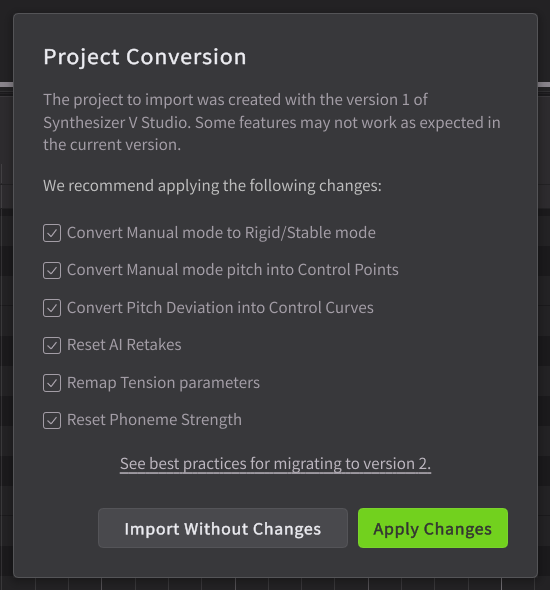
To open a project created in Synthesizer V Studio Version 2 in Version 1, use "Save As (1.10.0-Compatible)...".
¶ Open Other File Formats
In Synthesizer V Studio 2 Pro, you can import MIDI files, MusicXML files, and other singing data formats.
- Specify the file you want to open using one of the following methods.
- Click [File] > [Import] > [Import Project…] in the menu bar.
Press Ctrl+Shift+I (Windows) or Command+Shift+I (Mac). - In Explorer (Windows) or Finder (Mac), locate the file you want to open and drag it into the Synthesizer V Studio 2 Pro window.
- Click [New Project]
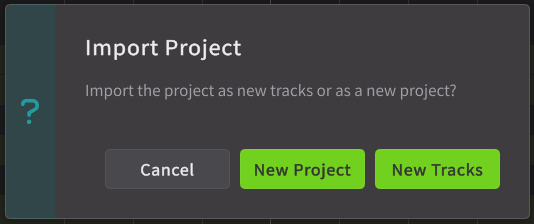
- Depending on the file type, a dialog may appear allowing you to select which tracks to import.
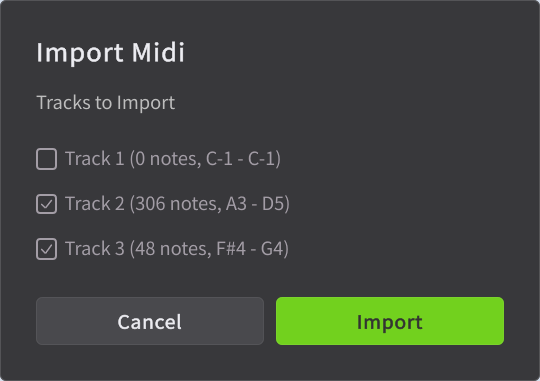
When importing MIDI or MusicXML files, not all lyrics may be imported accurately due to compatibility with DAWs or notation software.
MusicXML files can generally import lyrics more accurately than MIDI files (for English lyrics; accuracy may vary depending on the language).
¶ Open Backup Files
Projects are regularly backed up, allowing for partial recovery of edits even in the event of an unexpected software crash.
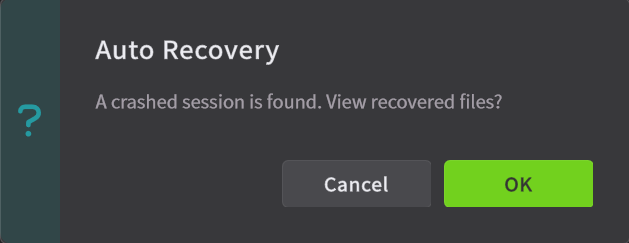
The next time you launch Synthesizer V Studio 2 Pro, the "Auto Recovery" dialog will appear, giving you the option to display the backup folder.
Clicking [OK] will open the backup folder in File Explorer (Windows) or Finder (Mac).
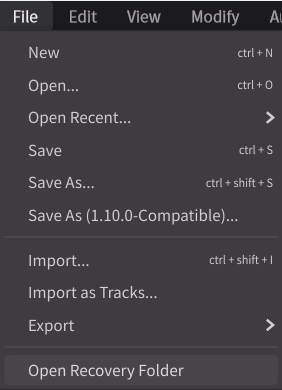
- Clicking [File] > [Open Recovery Folder] in the menu bar will open the backup folder in Explorer (Windows) / Finder (Mac).
Backup files are saved in the following location:
- Windows:
C:\Users\<username>\AppData\Roaming\Dreamtonics\Synthesizer V Studio 2\recovery - macOS:
/Users/<username>/Library/Application Support/Dreamtonics/Synthesizer V Studio 2/recovery
While backups offer a degree of recovery, it's crucial to regularly save your project for guaranteed data preservation.
¶ Merge Another Project Into the Current One
You can import the tracks of another project to the bottom of the track list in your current project.
This feature supports .svp files, as well as MIDI files, MusicXML files, and other music data formats.
- Specify the file you want to open using one of the following methods.
- Click [File] > [Import] > [Import Project…] in the menu bar.
- Press Ctrl+Shift+I / Command+Shift+I.
- In Explorer (Windows) or Finder (Mac), locate the file you want to open and drag it into the Synthesizer V Studio 2 Pro window.
- Click [New Tracks]
Please note that tempo will not be imported using this method.
¶ Save the Project
For information on saving methods using plugins, please refer to "Instrument Plugin Setup" and "Full ARA Mode Setup".
¶ Save Synthesizer V Studio Projects
When saving a new project for the first time, a dialog box will appear asking you to specify the file's save location and name.
If a project file already exists, it will be overwritten upon saving.
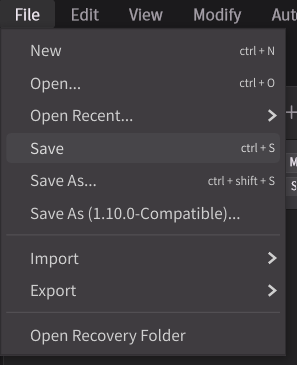
- Click [File] > [Save] (or Ctrl+S/Command+S)
¶ Save As a Different File
To save an existing project file under a different name, use Save As....
- Click [File] > [Save As...] (or Ctrl+Shift+S/Command+Shift+S)
After this, selecting [File] > [Save] will overwrite the project file.
¶ Save SVP Files Compatible with Older Versions
To open a Synthesizer V Studio Version 2 project in Version 1, you need to save it as version 1.10.0 compatible.
However, some data, including parameters exclusive to Version 2, will not be included.
This feature allows you to save a .svp file that can be opened in Synthesizer V Studio versions 1.10.0 through 1.11.2
- Click [File] > [Save As (Version 1.10.0-Compatible)...].
Note that even if you edit and save the project later, it will not be automatically overwritten in this file.
Selecting [File] > [Save] will overwrite the previously saved project file (or save it as a new project file).
¶ Export Projects as MIDI Files
Export the entire project as a MIDI file.
If there are multiple note groups within a track, they will be combined into a single track for export.
- Click [File] > [Export] > [Export as MIDI...].
¶ Export Note Groups as UST Files
Export the currently edited note group as a .ust file.
- Click [File] > [Export] > [Export current group as UST...].