For information on the different types of plugins included with Synthesizer V Studio 2 Pro and how to use them, please refer to "Plugins and DAW Integration".
ARA Bridge Mode extends the functionality of the instrument plugin.
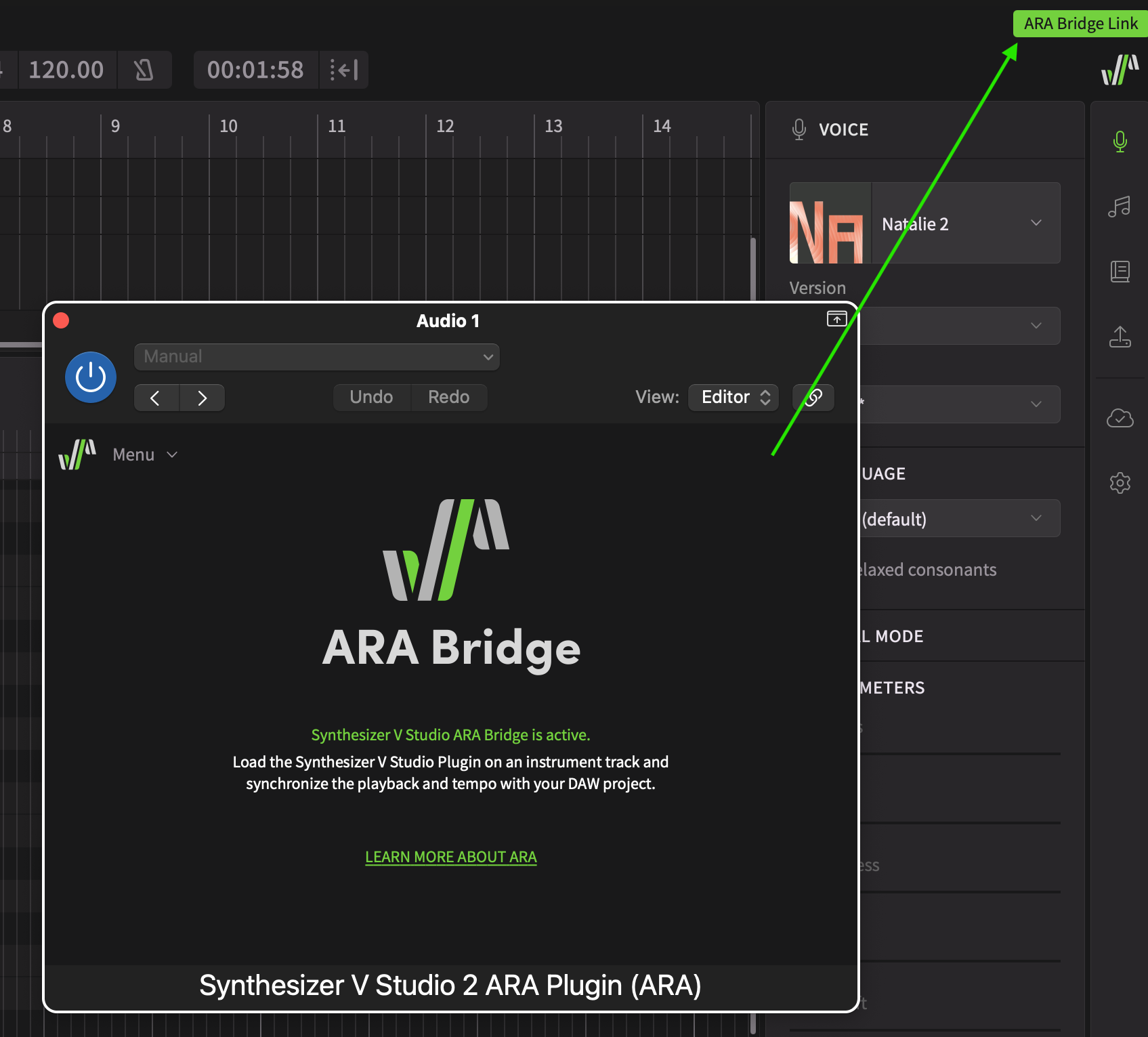
Instrument plugins alone have technical limitations, such as being unable to synchronize playback within the DAW environment even when playing back within the plugin.
Through ARA Bridge Mode, assigning instrument plugins and ARA plugins to separate tracks enhances the connection between the instrument plugin and the DAW environment. This allows for actions not possible with the instrument plugin alone.
For basic instructions on using the instrument plugin, please refer to "Instrument Plugin Setup".
¶ Supported DAWs
ARA Bridge Mode is available for use in DAWs that support ARA2.
(Note: The list of supported DAWs may differ between ARA Bridge Mode and Full ARA Mode.)
¶ DAWs That Have Been Tested with VST3
- Studio One 5 or later (Artist/Professional) / Fender Studio
- Cubase 12 or later (Artist/Pro)
- REAPER 6 or later
- Cakewalk
- ABILITY5 Pro
¶ DAWs That Have Been Tested With Audio Unit (AU)
- Logic Pro (x86 macOS, Rosetta only).
The AU version of the ARA plugin is exclusive to Logic Pro.
When using the ARA plugin in DAWs other than Logic Pro, please always use the VST3 version.
¶ DAWs That Have Been Tested With AAX (AAX)
- ProTools
¶ What You Can Do With ARA Bridge Mode
Through the connection established by the ARA plugin between the Instrument plugin and the DAW, you can perform the following actions:
- When playback occurs within the instrument plugin, the DAW will also synchronize and play back. Additionally, if you move the playhead in the DAW, the playhead in the instrument plugin will also move synchronously.
- The tempo and time signature set in the DAW will synchronize the tempo and time signature within the Instrument plugin.
- These functions can be turned on or off using the [ARA Bridge Link] button.
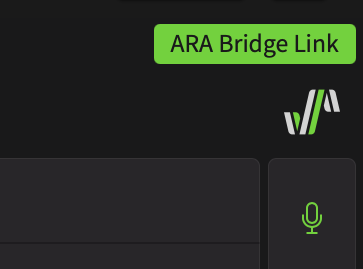
In ARA Bridge Mode, tempo cannot be set within the plugin. Please input tempo markers in your DAW.
If the tempo is not syncing properly, try playing back once in your DAW.
¶ Set Up ARA Bridge Mode
¶ 1. Attach the ARA Plugin
ARA plugins are generally designed to be attached to audio clips within your DAW.
Therefore, using ARA Bridge mode requires a dummy audio clip.
The audio of the audio clip that the ARA plugin is attached to will not be played back.
- Create an audio track and import an audio file.
You cannot launch the ARA plugin on an empty audio event. Some type of audio file is required.
- Add "Synthesizer V Studio 2 ARA Plugin" as an Event FX from the list of Effects. Select the VST3 version.
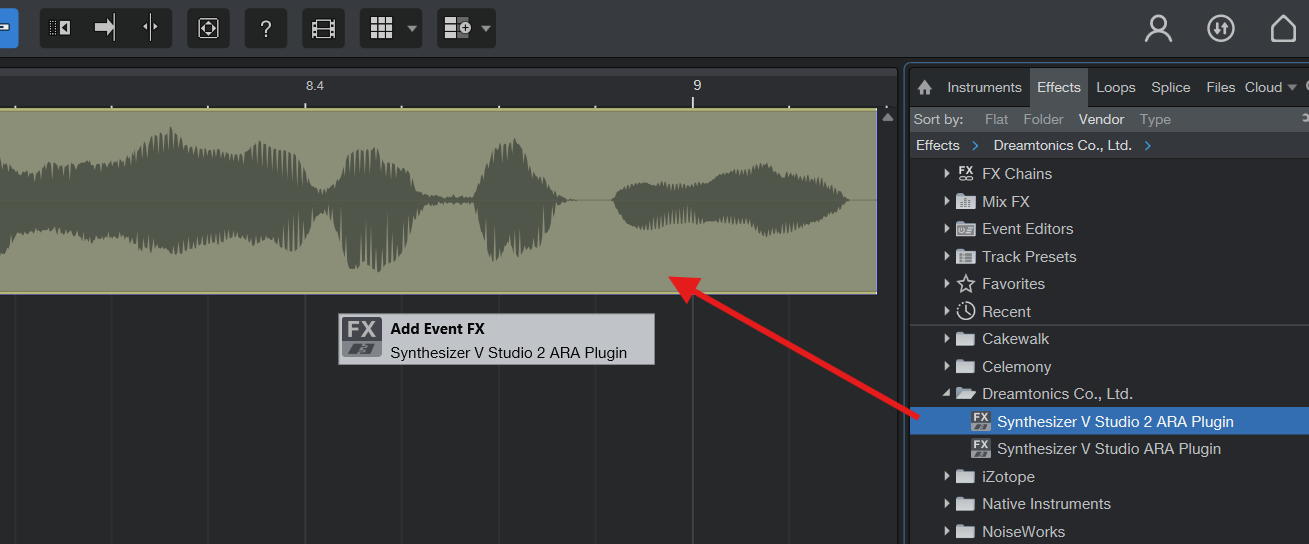
To attach Event FX to an audio event,
For Studio One versions 6.2 and later, drag and drop "Synthesizer V Studio 2 ARA Plugin" onto the audio event.
For Studio One versions 6.1 and earlier, drag and drop "Synthesizer V Studio 2 ARA Plugin" onto the audio event while holding down Alt/Option.
- Create an audio track and import an audio file.
You cannot launch the ARA plugin on an empty audio event. Some type of audio file is required.
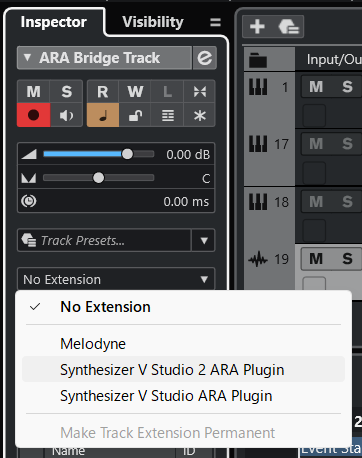
- In the track inspector, select VST3's "Synthesizer V Studio 2 ARA Plugin" from the Extensions menu.
- Create a track and import an audio file.
- Select and add "VST3: Synthesizer V Studio 2 ARA Plugin" from the FX menu.
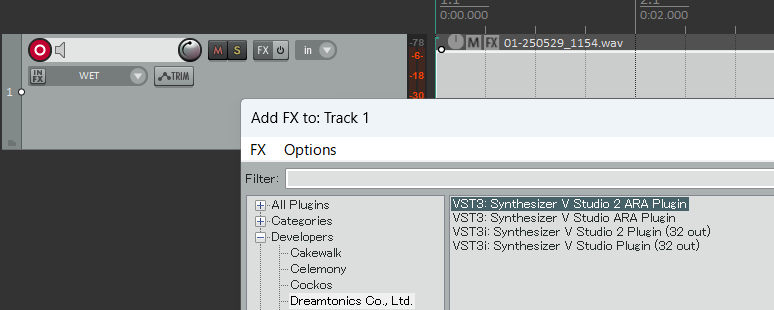
- Create an audio track and import an audio file.
- Select "Synthesizer V Studio 2 ARA Plugin" from the Audio FX menu.
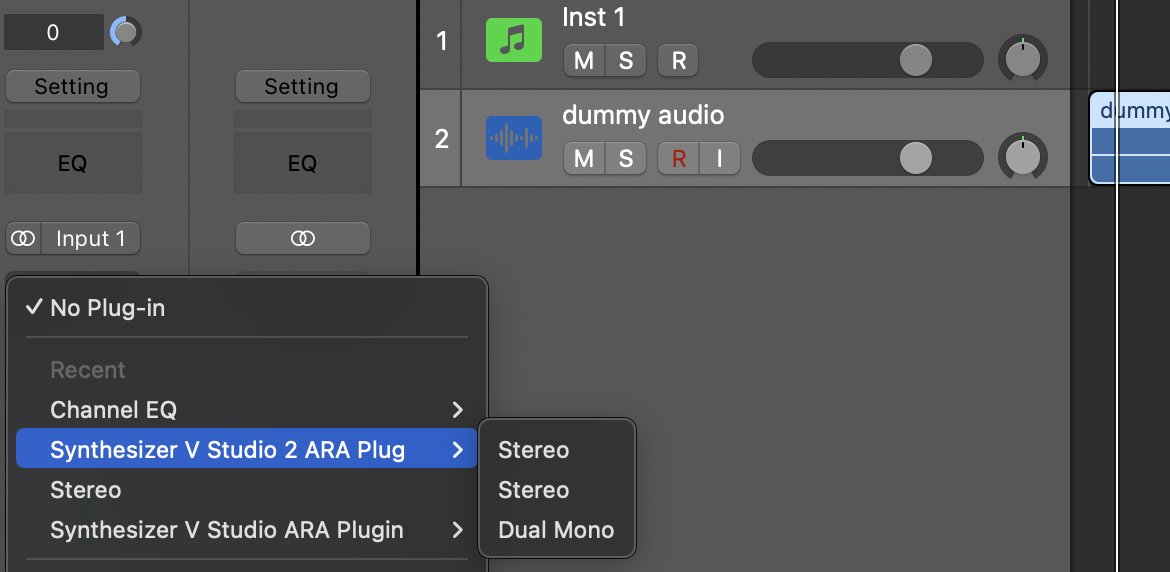
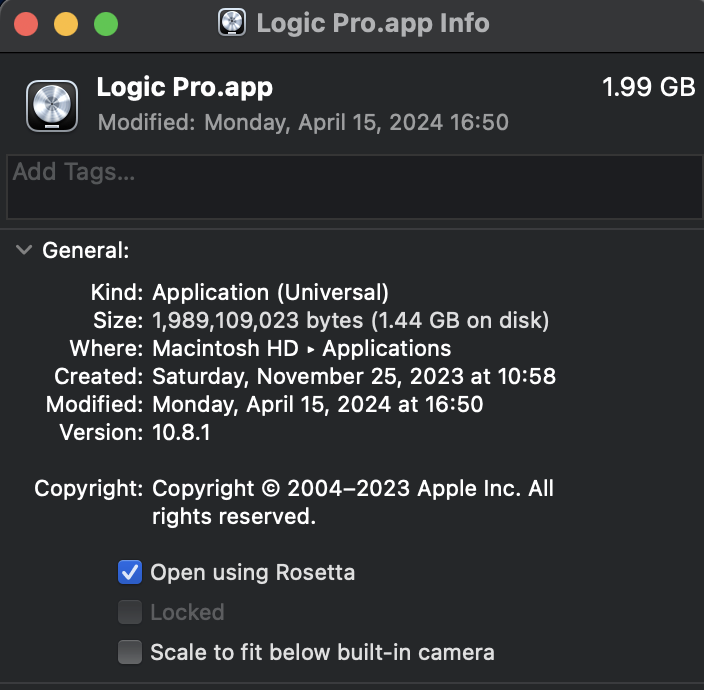
The Apple Silicon native environment does not support ARA. For details, please see the Apple Support page.
To use ARA plugins in Logic Pro, launch Logic Pro in Rosetta mode.
- Create an audio track and import an audio file.
- Right-click on the audio clip and select "Synthesizer V Studio 2 ARA Plugin" from the Region FX menu.
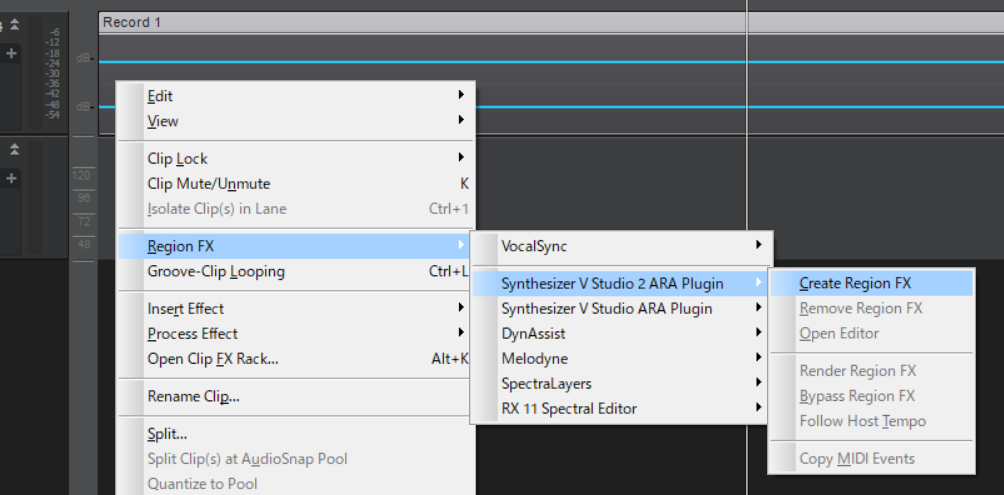
Adding it as a Audio FX will not allow the ARA function to start correctly. Please be sure to add it as a Region FX.
- If inserted into the track's FX rack
- If you drag and drop "Synthesizer V Studio 2 ARA Plugin" from the plugin browser onto an audio clip
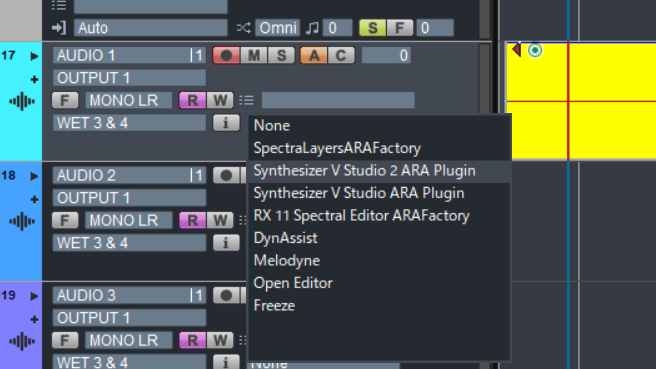
- Create an audio track and import an audio file.
- Click on the ARA Plugin Display section of the track and select "Synthesizer V Studio 2 ARA Plugin".
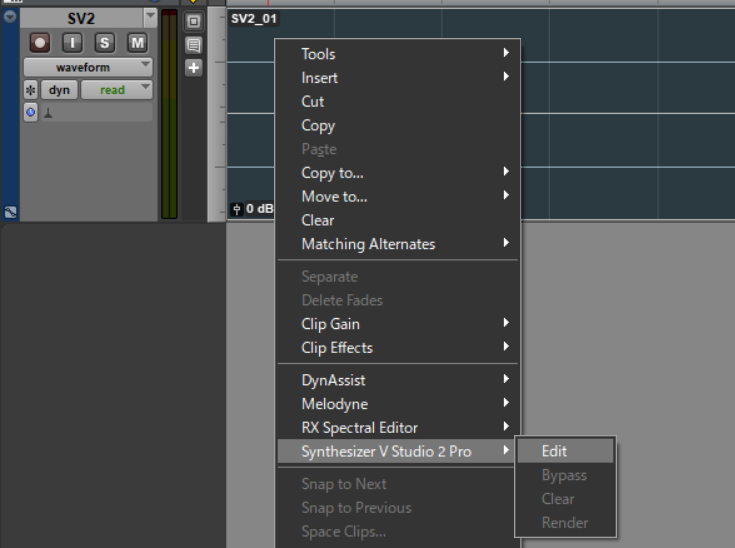
- Create an audio track and import an audio file.
- Right-click on the audio clip and select "Synthesizer V Studio 2 Pro".
¶ Launch the ARA Plugin
After attaching the plugin, Full ARA Mode screen in compatible DAWs will display, but this screen is not used in ARA Bridge Mode. Proceed to the next settings as they are.
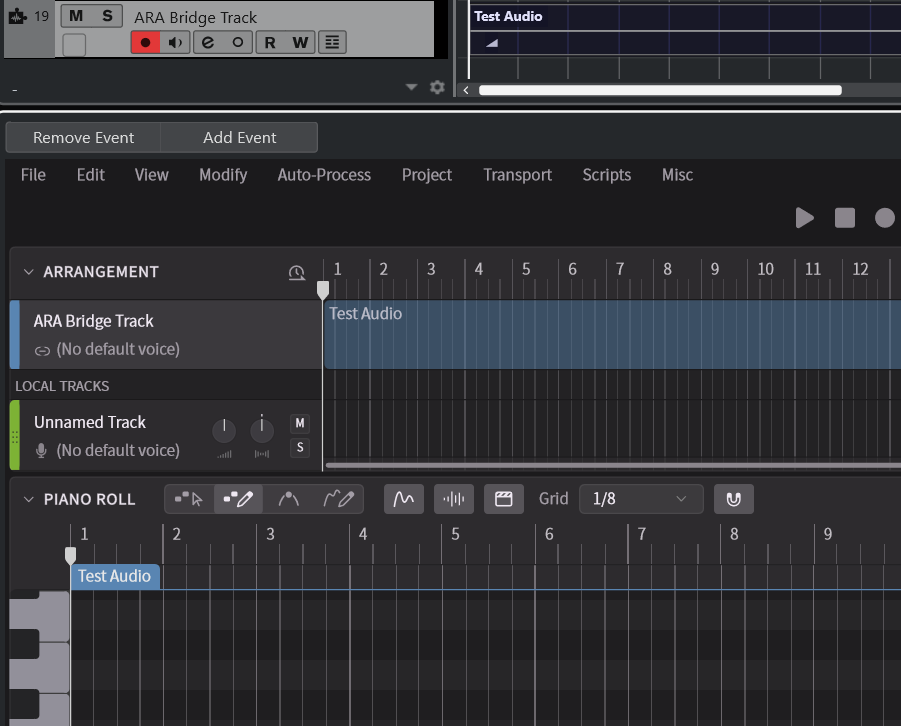
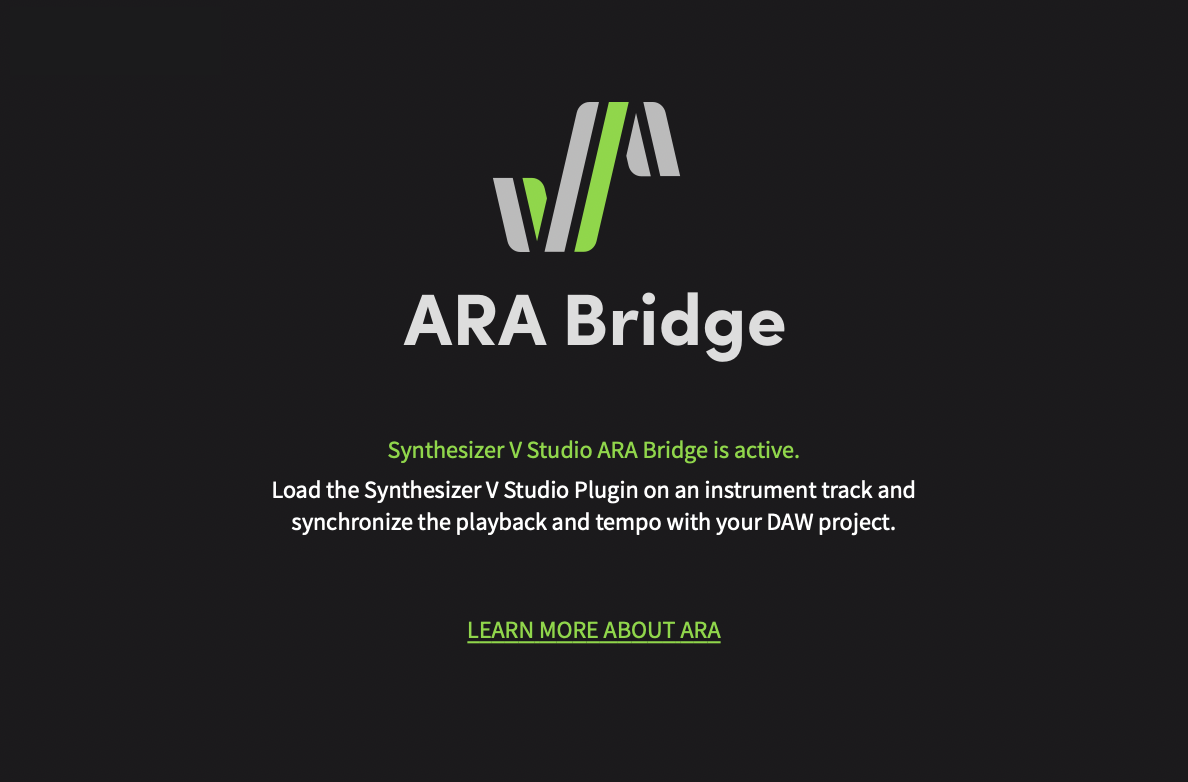
In other DAWs, a window will appear stating "Synthesizer V Studio ARA Bridge is active".
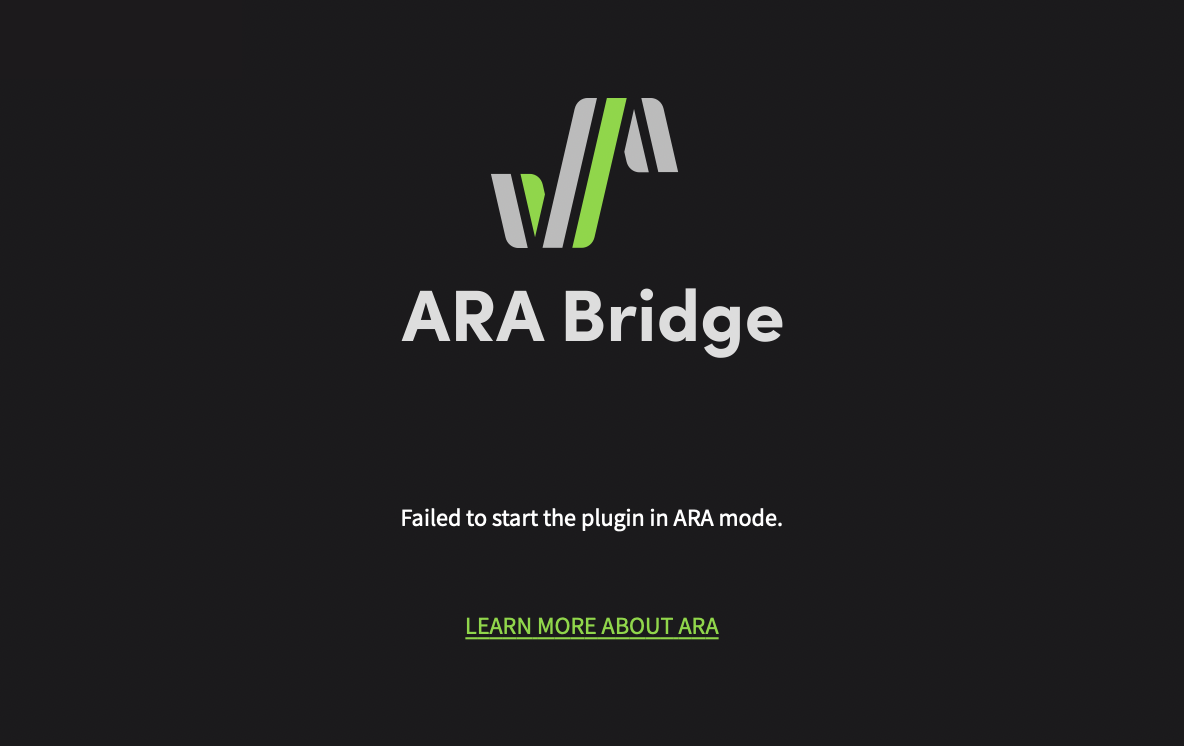
If you see the message "Failed to start the plugin in ARA mode,"
There are some possible reasons:
- The ARA plugin is inserted as a normal effect that is not ARA-compatible.
- On Apple Silicon Macs, Logic Pro is not in Rosetta mode.
- In DAWs other than Logic Pro, you are using an AU plugin.
¶ 2. ARA Bridge Link
Create an instrument track and insert the Instrument plugin.
Then, play back in the DAW once and stop playback.
If the [ARA Bridge Link] button in the upper right corner of the instrument plugin is on, setup is complete. Click this button to toggle ARA Bridge mode on and off.