In the Dictionary panel, you can register the pronunciation of words.
When converting a note's lyrics into phonemes, the software usually uses its default dictionary. However, you can customize the conversion rules by creating user dictionaries in the Dictionary panel.
To use a dictionary, the currently selected voice for the note group must be chosen.
User dictionaries are saved in the following locations:
Windows:
C:\Users\<username>\AppData\Roaming\Dreamtonics\Synthesizer V Studio 2\dicts
macOS:/Users/<username>/Library/Application Support/Dreamtonics/Synthesizer V Studio 2/dicts
¶ Open the Dictionary Panel
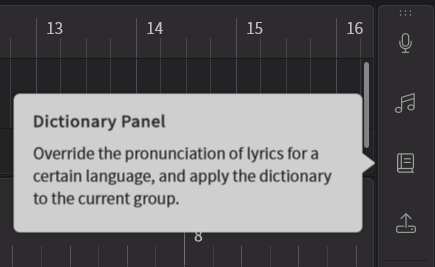
Click on the third icon from the top in the sidebar to open the Dictionary panel.
¶ Create a New Dictionary
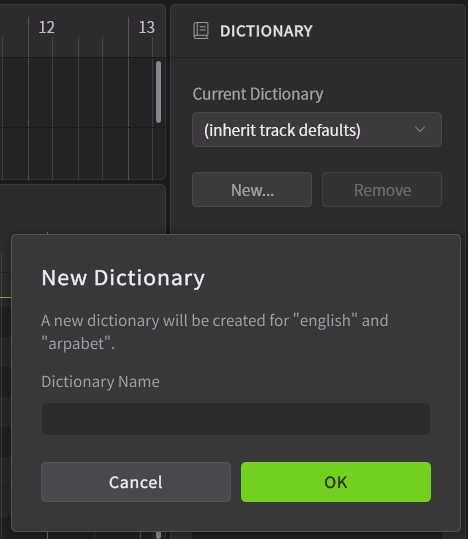
Click [New...], enter a new dictionary name, and click [OK].
Dictionaries are created for each language.
¶ Select a Dictionary
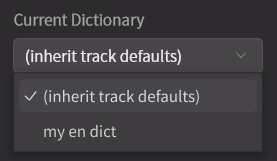
Select the desired dictionary from [Current Dictionary].
Only dictionaries in the same language as the voice of the currently selected note group can be chosen.
¶ Register Words and Pronunciations
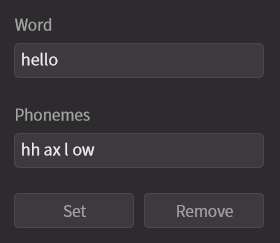
Enter the desired word in [Word], input its pronunciation in [Phonemes], and click [Set].
The phonemes available for use within the editor vary depending on the language.
You can check the available phonemes in the Phoneme Reference List.
¶ Edit Words and Pronunciations
Select the word you want to edit, modify the word or pronunciation, then click [Set].
¶ Delete Words
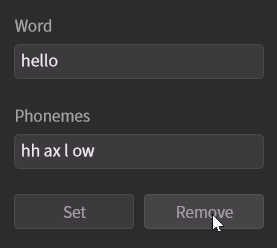
Select the word you want to delete and click [Remove].
¶ Delete a Dictionary
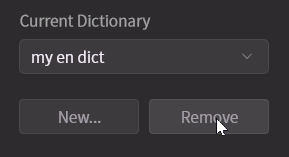
Select the dictionary you want to delete from [Current Dictionary] and click [Remove].